
Protect Your PC: Best Practices for Installing Software on Windows Without Compromising Security
Software installation on a Windows computer is a routine task, yet it carries inherent security risks. Each new program introduces potential vulnerabilities, acting as a new door into your system. Understanding and mitigating these risks is crucial for maintaining PC security.
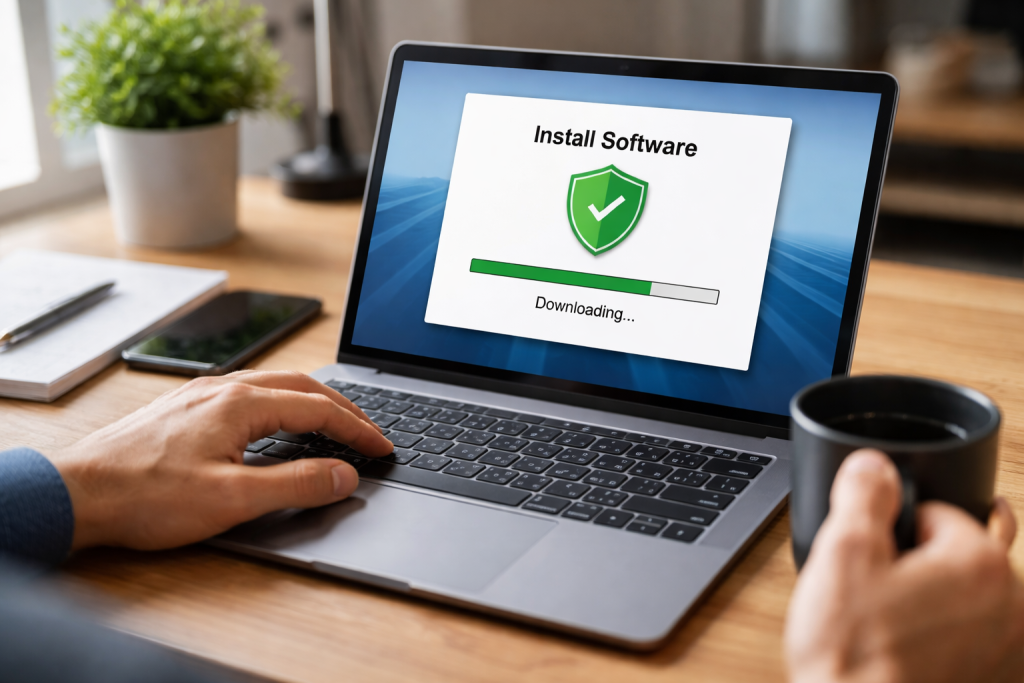
Installing software is not a neutral act. It changes your system, often modifying core files and introducing new processes. If done carelessly, this can expose your computer to various threats.
Contents
- 0.1 Why Software Installation Can Compromise PC Security
- 0.2 The Importance of Trusted Sources
- 0.3 Best Practices for Verifying Software Authenticity
- 0.4 Avoiding Potentially Unwanted Programs (PUPs)
- 0.5 The Role of Antivirus and Antimalware Software
- 0.6 How to Customize Installation Settings
- 0.7 Updating Software Safely
- 0.8 The Dangers of Pirated Software
- 0.9 Securing Your PC After Installation
- 0.10 Maintaining PC Security During Uninstallation
- 1 FAQs
- 1.1 1. What are the best practices for installing software on Windows without compromising security?
- 1.2 2. Why can software installation compromise PC security?
- 1.3 3. Where can I find safe software downloads from trusted sources?
- 1.4 4. How can I verify software authenticity before installation?
- 1.5 5. What role do antivirus and antimalware software play in protecting my PC during software installation?
Why Software Installation Can Compromise PC Security
Software can compromise PC security through several mechanisms. Malicious software, often disguised as legitimate programs, can directly install viruses, ransomware, or spyware. Even legitimate software, if poorly coded or containing unknown vulnerabilities, can create entry points for attackers. Furthermore, software often requests permissions to access various parts of your system, such as files, network connections, or peripherals. Granting excessive or unnecessary permissions can broaden the attack surface for malicious actors. An analogy might be giving a new acquaintance keys to your entire house when they only needed access to the living room.
Hidden software components, such as toolbars or browser extensions, are also a common risk. These elements, often bundled with desirable programs, can track browsing habits, display unwanted advertisements, or even hijack your browser settings.
The origin and authenticity of the software you install are paramount. Obtaining software from unreliable sources is like drinking unidentified liquid; you don’t know what you’re truly consuming.
The Importance of Trusted Sources
Always download software from the official developer’s website. This is the most direct and reliable way to ensure you are getting the intended program. Third-party download sites often bundle software with unwanted applications (PUPs) or even malware. While some reputable sites act as legitimate software repositories, exercising caution is still prudent. Look for clear indicators of official endorsement or direct links to developer sites. Avoid torrent sites or file-sharing platforms for software downloads, as these are often breeding grounds for malware.
Best Practices for Verifying Software Authenticity
Before installation, verify the authenticity of the downloaded file. Developers often provide cryptographic hashes (like SHA-256) for their software downloads. You can use a hash calculation tool to compare the hash of your downloaded file with the one provided by the developer. If the hashes do not match, the file has been altered or corrupted, and you should not proceed with installation. This is like checking the seal on a product to ensure it hasn’t been tampered with.
Another authentication method involves checking digital signatures. Executable files (typically .exe on Windows) are often digitally signed by the developer. Right-clicking the file, going to “Properties,” and then to “Digital Signatures” can reveal who signed the software. Ensure the signer is the legitimate developer and that the signature is valid. An invalid or absent signature should trigger a warning.
Avoiding Potentially Unwanted Programs (PUPs)
Potentially Unwanted Programs (PUPs) are software components bundled with legitimate programs, often without the user’s explicit consent. These can include browser toolbars, adware, or utility programs that perform little useful function and can even degrade system performance. During the installation process, always select “Custom” or “Advanced” installation options instead of “Express” or “Recommended.” This allows you to review and deselect any additional software or components that are not essential to the main program. Pay close attention to every screen, especially those with small checkboxes or pre-selected options. Deciphering this can sometimes feel like navigating a legal document designed to confuse.
Beyond careful sourcing, active security measures during installation are essential. Your antivirus acts as a gatekeeper, and your own choices during the process can build stronger walls.
The Role of Antivirus and Antimalware Software
Keep your antivirus and antimalware software updated and active. Before downloading and especially before running any new software, a full system scan can detect known threats. During installation, your antivirus often monitors the process in real-time, scanning files as they are written to your disk and flagging suspicious activity. Do not disable your antivirus during installation unless absolutely necessary and only if you completely trust the software and its source. Disabling your antivirus is akin to leaving your front door wide open while inviting a stranger in.
How to Customize Installation Settings
Most software offers customization options during installation. Utilize these to your advantage. Deselect features you don’t need or understand. Avoid installing bundled third-party programs. Pay attention to proposed changes to your browser’s homepage, search engine, or default applications. Unless you explicitly want these changes, decline them. Some programs attempt to install background services or startup items; consider if these are genuinely necessary for the program’s function. Limiting these can reduce your system’s resource consumption and potential attack surface.
Software management is not a one-time event; it’s an ongoing process. Maintaining a secure environment requires continuous vigilance.
Updating Software Safely
Regularly updating your software is crucial for security. Developers often release updates to fix bugs, improve features, and, most importantly, patch security vulnerabilities. Outdated software is a common gateway for exploits. Enable automatic updates for your operating system and critical applications where possible. For other software, regularly check for updates through the program itself or its official website. Be wary of notifications for updates that appear unexpectedly or from unknown sources, as these can be phishing attempts. Always download updates from the official vendor.
The Dangers of Pirated Software
Pirated software, sometimes called “cracked” or “warez,” is a significant security risk. Beyond the ethical and legal implications, pirated software is a common vector for malware. Crackers often embed viruses, spyware, or other malicious code into the modified software. When you install pirated software, you are giving an unknown entity direct access to your system. The cost of a legitimate license is almost always less than the potential damage and data loss from a malware infection. Using pirated software is like living in a house with a compromised foundation; eventual collapse is likely.
Securing Your PC After Installation
After installation, take steps to further secure your PReview the permissions the new software has been granted. On Windows, you can often manage app permissions in the Settings menu. Configure your firewall to restrict unnecessary outbound or inbound connections for the new program. If the software includes any server components or exposed ports, ensure they are properly secured and password-protected. Regularly back up your data, especially before installing significant new software, as a safeguard against unforeseen issues. Finally, regularly review your installed programs and uninstall any software you no longer use, reducing clutter and potential vulnerabilities. Each unused program adds a layer of dust to your security posture.
Properly uninstalling software is as important as installing it correctly. Leftover files and registry entries can sometimes cause issues or leave open backdoors.
Maintaining PC Security During Uninstallation
Never simply delete a program’s folder to uninstall it. Use the official uninstallation method: either through the Windows “Add or Remove Programs” feature or by running the uninstaller provided by the software itself (often found in the program’s folder in the Start Menu). These methods ensure that all associated files, folders, and registry entries are removed cleanly. Some programs offer to keep user data or settings during uninstallation; consider if this is truly necessary. If a program is difficult to remove, use reputable third-party uninstaller tools that specialize in deep cleaning, but always exercise caution and ensure these tools themselves are from trusted sources. Regularly auditing your installed programs and removing unneeded software contributes to a cleaner, more secure system.
FAQs
1. What are the best practices for installing software on Windows without compromising security?
Some best practices for installing software on Windows without compromising security include downloading software from trusted sources, verifying software authenticity before installation, avoiding potentially unwanted programs (PUPs), customizing installation settings to minimize security risks, and updating software safely.
2. Why can software installation compromise PC security?
Software installation can compromise PC security because it may introduce vulnerabilities or malware to the system. This can happen if the software is downloaded from untrusted sources, if the software is not verified for authenticity before installation, or if potentially unwanted programs (PUPs) are inadvertently installed along with the desired software.
3. Where can I find safe software downloads from trusted sources?
Safe software downloads from trusted sources can be found on official websites of the software developers, reputable download platforms, and app stores. It is important to avoid downloading software from third-party websites or sources with a questionable reputation.
4. How can I verify software authenticity before installation?
Software authenticity can be verified before installation by checking the digital signature of the software, confirming the reputation of the developer or publisher, and ensuring that the download link is from a legitimate source. This helps to ensure that the software has not been tampered with or compromised.
5. What role do antivirus and antimalware software play in protecting my PC during software installation?
Antivirus and antimalware software play a crucial role in protecting your PC during software installation by scanning the downloaded files for malware, detecting and removing potentially harmful programs, and providing real-time protection against security threats. It is important to keep antivirus and antimalware software updated to effectively safeguard your PC during software installation.

With over 5 years of experience in digital learning and productivity, we specialize in creating practical and easy-to-follow solutions.Our expertise focuses on simplifying complex concepts into clear, actionable strategies for everyday use.We are committed to helping learners and professionals improve efficiency, build skills, and achieve consistent growth.