
Keep Your Cool: Tips for Preventing and Fixing PC Overheating
A hot computer is an unhappy computer, and an unhappy computer performs poorly. In fact, sustained overheating can lead to a host of problems, from frustratingly slow performance to irreversible hardware damage. Thankfully, preventing and addressing PC overheating isn’t a dark art reserved for tech wizards. With a little knowledge and some proactive maintenance, you can keep your rig running cool and collected. This comprehensive guide will guide you through the process of understanding the causes of overheating, implementing preventative measures, troubleshooting common issues, and determining when to seek assistance.
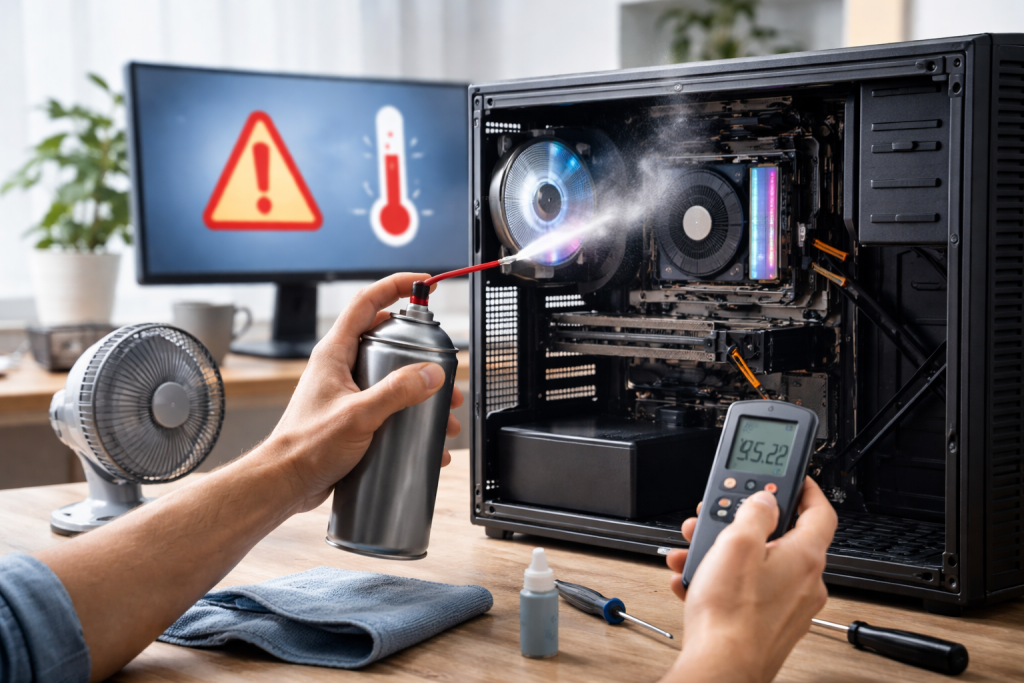
At its core, PC overheating is a consequence of heat generation outpacing heat dissipation. Every electronic component within your computer generates heat as it performs its duties. Processors, graphics cards, and power supply units are particularly notorious for this. When the ambient temperature rises, or when these components are pushed to their limits, the heat they produce can accumulate faster than your cooling system can remove it. This issue isn’t just theoretical; it has tangible effects on performance and longevity.
Contents
- 0.1 The Silent Culprits: Dust and Debris Accumulation
- 0.2 The Underappreciated Heroes: Ventilation and Airflow Dynamics
- 0.3 The Crucial Interface: Thermal Paste’s Vital Role
- 0.4 Harnessing the Power of Air: Ensuring Optimal Ventilation and Airflow
- 0.5 The Lifespan of Lubrication: Managing Thermal Paste Degradation
- 0.6 The Watchful Eye: Software Tools for Temperature Monitoring
- 0.7 The Silent Scream: Recognizing Signs of PC Overheating
- 0.8 The Foundation of Cooling: Choosing the Right Cooling System
- 0.9 When to Call for Backup: Seeking Professional Help
- 1 FAQs
- 1.1 What are the common causes of PC overheating?
- 1.2 How can I prevent PC overheating?
- 1.3 What are the signs of PC overheating, and how can I fix them?
- 1.4 Why are proper ventilation and airflow important in preventing PC overheating?
- 1.5 When should I seek professional help for PC overheating issues?
The Silent Culprits: Dust and Debris Accumulation
One of the most common and insidious contributors to PC overheating is the silent infiltration of dust and debris. Over time, these particles settle on crucial cooling components like heatsinks, fans, and vents. This layer of insulation acts like a blanket, significantly hindering the ability of fans to draw in cool air and expel hot air. Imagine trying to cool yourself down with a thick scarf wrapped around your head—it’s an inefficient, if not impossible, endeavour. Dust buildup can drastically reduce the effectiveness of your cooling hardware, leading to elevated temperatures even under moderate loads.
The Underappreciated Heroes: Ventilation and Airflow Dynamics
Proper ventilation and airflow are the unsung heroes of PC temperature regulation. Your computer’s case is designed to facilitate a constant flow of air, typically drawing cooler air in from the front and expelling warmer air from the rear and top. This creates a convection current that carries heat away from sensitive components. The PC’s placement or internal clutter can obstruct this airflow, leaving the accumulated heat with nowhere to escape. A PC crammed into a tight cabinet with no breathing room will struggle immensely to maintain optimal temperatures, regardless of how powerful its cooling system is.
The Crucial Interface: Thermal Paste’s Vital Role
Between the heat-generating components, primarily the CPU and GPU, and their respective heatsinks lies a thin layer of thermal paste. This substance, often compared to a high-tech goo, fills in microscopic imperfections on the surfaces of both the processor and the heatsink. These invisible imperfections would otherwise create air gaps, which are poor conductors of heat. Thermal paste acts as a highly efficient thermal conductor, ensuring that heat is effectively transferred from the chip to the heatsink, where it can then be dissipated by the fan. Over time, thermal paste can dry out and degrade, losing its effectiveness and becoming a bottleneck in the heat transfer process.
The best defense against PC overheating is a robust offence of proactive maintenance and thoughtful setup. By implementing a few key practices, you can significantly reduce the likelihood of your computer succumbing to the heat.
Harnessing the Power of Air: Ensuring Optimal Ventilation and Airflow
Creating a clear pathway for air is paramount. Avoid placing your PC in enclosed spaces like cabinets or directly against walls. Give your computer ample breathing room. If you’re using a desktop, consider its orientation; generally, a vertical placement with unobstructed front and rear access is ideal. For laptops, always use them on rigid, flat surfaces that allow for unimpeded airflow beneath the device. Avoid using them on soft surfaces like beds or couches, which can easily block the intake vents.
The Art of the Cleanliness: Gentle Dust Removal Techniques
Regular cleaning is your first line of defense against dust-induced overheating. The most effective way to tackle this is with a can of compressed air. Before you begin, ensure your PC is powered off and unplugged. With the compressed air, gently blow out dust from fans, heatsinks, and the various vents on your computer’s chassis. Be sure to hold the can upright to avoid expelling propellant. You can also use a soft-bristled brush to dislodge stubborn dust, but always be gentle. For more thorough cleaning, consider removing panels to access internal components, but only if you are comfortable doing so and have a grounding strap to prevent static discharge.
The Lifespan of Lubrication: Managing Thermal Paste Degradation
As mentioned, thermal paste has a finite lifespan. If your PC is several years old and you’ve never reapplied thermal paste, it’s a worthy candidate for a refresh. This involves carefully removing the existing heatsink, cleaning off the old paste from both the chip and the heatsink with isopropyl alcohol, and then applying a small, pea-sized amount of new thermal paste to the centre of the CPU or GPU die before reattaching the heatsink. This process can significantly improve heat transfer and lower temperatures.
The Art of Organization: Cable Management for Improved Airflow
It might seem like a minor detail, but chaotic cables inside your PC can significantly impede airflow. Loose wires can obstruct fans, block vents, and create hot spots. Take the time to neatly bundle and tie down cables using zip ties or Velcro straps. Route them along the edges of the case or use any built-in cable management features your chassis may offer. This improves aesthetics and plays a crucial role in ensuring that air can circulate freely throughout your system.
Knowing your PC’s temperature is key to preventing issues before they become critical. Fortunately, several tools can help you monitor your system’s thermal performance.
The Watchful Eye: Software Tools for Temperature Monitoring
Numerous free and paid software applications are available to monitor your CPU, GPU, and other component temperatures. Popular choices include HWMonitor, Speccy, and MSI Afterburner (which also offers GPU overclocking capabilities). These programmes often display real-time temperature readings, as well as historical data, allowing you to identify trends and pinpoint when your system is running hotter than it should be. Many also allow you to set custom alerts for when temperatures exceed predefined thresholds, giving you an early warning.
Responding to the Heat: Practical Steps to Lower PC Temperatures
When you notice your temperature climbing, there are immediate steps you can take. First, close any non-essential programs or games that might be putting a heavy load on your CPU or GPU. If you’re gaming, consider lowering your in-game graphics settings, which will reduce the demand on your graphics card. If your PC is a laptop, ensure its vents are clear and consider using a cooling pad. A quick reboot can sometimes help reset problematic processes that might be causing excessive heat generation.
Sometimes, despite your best efforts, your PC might still exhibit signs of overheating. In these instances, a more targeted approach is required.
The Silent Scream: Recognizing Signs of PC Overheating
The signs of an overheating PC can range from subtle to severe. You might notice your computer becoming unusually noisy, with fans spinning at their maximum speed constantly. Performance might degrade noticeably; applications could lag, games might stutter, and your system might freeze or crash unexpectedly, often accompanied by a blue screen of death (BSOD). In extreme cases, you might even smell a faint burning odour, which is a serious warning sign.
The Band-Aid Fixes: Immediate Solutions for Overheating Issues
If you’ve identified that your PC is overheating, the immediate priority is to shut it down safely. Allow it to cool down for at least 30 minutes before attempting to power it back on. Once cooled, try to identify the cause. Is it a specific application running? Is the room temperature unusually high? Is there visible dust buildup? Performing a quick external clean with compressed air can be a beneficial first step. Ensure all fans are spinning freely.
The Foundation of Cooling: Choosing the Right Cooling System
The stock coolers that come with most CPUs are often adequate for basic use, but for more demanding tasks, gaming, or overclocking, an aftermarket cooler is highly recommended. These come in two main forms: air coolers and all-in-one (AIO) liquid coolers. Air coolers use a large heatsink and fan to draw heat away from the CPU. AIO liquid coolers use a pump, radiator, and fans to circulate liquid coolant, which is a more efficient method of heat transfer. When choosing a cooler, consider your CPU’s thermal design power (TDP), the size of your PC case to ensure clearance, and your budget.
The Long Game: The Importance of Regular Maintenance
Preventing PC overheating isn’t a one-time fix; it’s an ongoing commitment. Regularly scheduled maintenance is crucial. This includes cleaning your PC of dust at least every three to six months, depending on your environment. Periodically checking your thermal paste’s condition, especially if you notice a gradual increase in temperatures over time, is also a good practice. Keeping your operating system and drivers updated can also help, as optimisations are often released that improve efficiency and reduce resource usage, thereby lowering heat generation.
When to Call for Backup: Seeking Professional Help
While DIY solutions can resolve many PC overheating issues, there are times when you should seek professional assistance. If you’ve tried all the common troubleshooting steps and your PC continues to overheat, or if you’re uncomfortable performing internal hardware interventions like reapplying thermal paste or replacing components, it’s best to take it to a qualified computer technician. They have the specialised tools and knowledge to diagnose complex issues and can ensure repairs are done correctly, preventing further damage. If you suspect a hardware failure, such as a faulty fan or a malfunctioning sensor, professional diagnosis is essential.
FAQs
What are the common causes of PC overheating?
Common causes of PC overheating include dust and debris buildup, inadequate ventilation and airflow, improper cable management, and a malfunctioning cooling system.
How can I prevent PC overheating?
You can prevent PC overheating by regularly cleaning dust and debris from your PC, ensuring proper ventilation and airflow, managing cables properly, applying thermal paste, choosing the right cooling system, and monitoring and controlling PC temperature.
What are the signs of PC overheating, and how can I fix them?
Signs of PC overheating include sudden shutdowns, slow performance, and unusual fan noises. To fix them, you can clean dust and debris, improve ventilation, check and replace thermal paste, and monitor temperature.
Why are proper ventilation and airflow important in preventing PC overheating?
Proper ventilation and airflow are important in preventing PC overheating because they help dissipate heat generated by the components inside the PC. Without proper ventilation and airflow, heat can build up and cause the PC to overheat.
When should I seek professional help for PC overheating issues?
You should seek professional help for PC overheating issues if you have tried basic troubleshooting steps and the problem persists. Professional help may also be necessary if you are not comfortable performing more advanced maintenance tasks on your PC.

With over 5 years of experience in digital learning and productivity, we specialize in creating practical and easy-to-follow solutions.Our expertise focuses on simplifying complex concepts into clear, actionable strategies for everyday use.We are committed to helping learners and professionals improve efficiency, build skills, and achieve consistent growth.