
Upgrade Your Tech: The Ultimate Guide to Transferring Software to a New Computer
When acquiring a new computer, transferring existing software is a necessary task. This process involves moving applications from an old system to a new one, ensuring continued access to user programs and data. A methodical approach simplifies this procedure, minimizing potential disruptions.
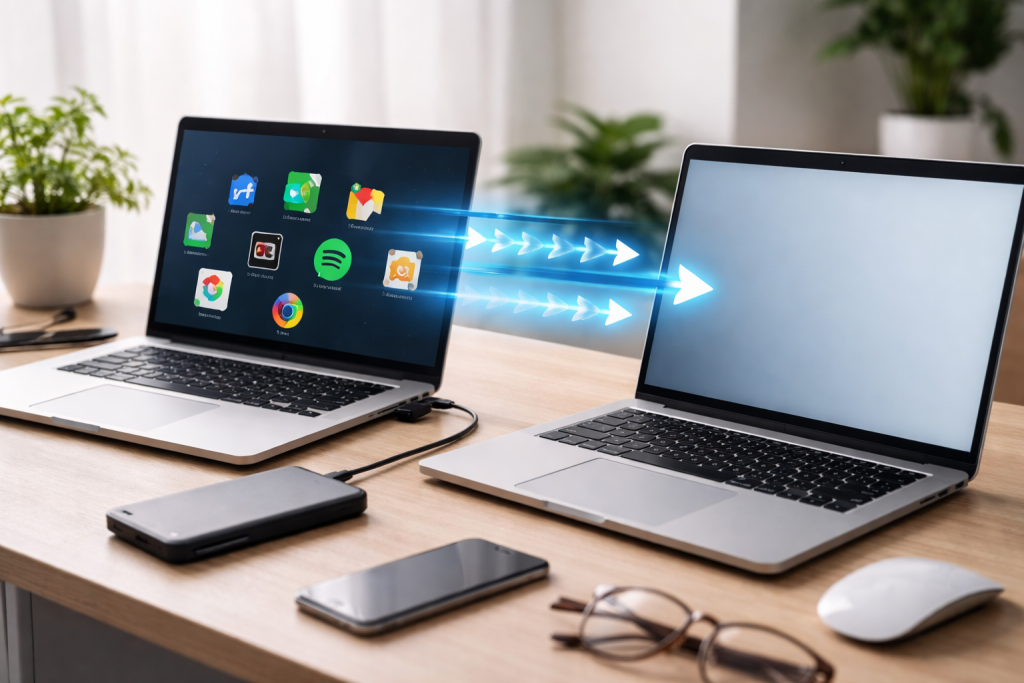
Software is the operational core of a computer, enabling users to perform various tasks. When a computer is replaced, the embedded software, along with user-generated content, must be relocated. Failure to transfer software compromises productivity and requires reinstallation of each program, a time-consuming effort. Software transfer maintains business continuity and personal workflows by preserving application environments and their associated settings.
Contents
- 0.1 User Data and Settings
- 0.2 License Management
- 0.3 Backup All Data
- 0.4 Document Software and Licenses
- 0.5 Deauthorize Software
- 0.6 Check System Requirements
- 0.7 Locating Installation Files
- 0.8 Reinstallation Process
- 0.9 Migrating User Profiles and Settings
- 0.10 Operating System Built-in Tools
- 0.11 Third-Party Migration Software
- 0.12 Network Transfer
- 0.13 Retaining Key Information
- 0.14 Understanding License Types
- 0.15 Application Incompatibility
- 0.16 Missing Files or Settings
- 0.17 Activation Failures
- 0.18 Regular Updates and Patches
- 0.19 Resource Allocation
- 0.20 Disk Defragmentation/TRIM
- 0.21 Clean Installation vs. Migration
- 1 FAQs
- 1.1 1. What is the importance of transferring software to a new computer?
- 1.2 2. What are the steps to take before transferring software to a new computer?
- 1.3 3. How can software be transferred manually to a new computer?
- 1.4 4. What are migration tools, and how can they be used to transfer software to a new computer?
- 1.5 5. How can compatibility issues be dealt with when transferring software to a new computer?
User Data and Settings
Many applications store user preferences, customized settings, and locally saved data. Direct software transfer often preserves these elements, eliminating the need for reconfiguration. This saves time and ensures a seamless transition to the new hardware. For example, a word processor program might retain custom dictionaries or templates. Similarly, a web browser could keep bookmarks and stored passwords.
License Management
Software often operates under specific licensing agreements. A transfer process must account for these licenses to ensure legal and continued use on the new machine. Improper transfer might invalidate existing licenses, necessitating new purchases or intricate reactivation procedures. Understanding license types and their transferability is crucial before attempting any move.
Before initiating any software transfer, certain actions should be undertaken to ensure a smooth transition. These steps serve as a foundation, akin to preparing a building site before construction begins.
Backup All Data
Creating a comprehensive backup of all data on the old computer is paramount. This acts as a safety net against data loss during the transfer process or in case of unforeseen errors. This backup should include personal documents, photos, videos, and any other files deemed important. External hard drives or cloud storage services are suitable for this purpose.
Document Software and Licenses
Before moving software, compile a list of all applications installed on the old computer. Note down the software titles, version numbers, and any corresponding product keys or activation codes. This documentation is invaluable if manual reinstallation becomes necessary or if license verification is required. For instance, creating a spreadsheet that includes a column for the software name, its developer, version, and the license key can be very helpful.
Some software, particularly design applications or professional tools, implements strict digital rights management (DRM), which limits the number of active installations. Before transferring, deauthorize these applications on the old computer. This frees up the license for use on the new machine. Failing to do so can result in activation issues on the new system, as the license may appear to be still in use elsewhere.
Check System Requirements
Verify that the new computer meets the minimum system requirements for all software being transferred. Newer operating systems or hardware might not natively support older applications, and vice versa. Consulting the software developer’s specifications ensures compatibility and avoids installation failures or performance issues. For example, a 32-bit application may not run on a 64-bit-only operating system.
Manual software transfer involves reinstalling applications directly from their original installation media or downloaded installers onto the new computer. This method is often the most reliable, though it can be time-consuming. Think of it as rebuilding a house from scratch, ensuring each component is properly placed.
Locating Installation Files
Find the original installation media (CDs, DVDs) or downloaded installer files for each application. If these are unavailable, visit the software developer’s website to download the latest compatible version. Be aware that some older software may no longer be officially supported or available for download. It’s often helpful to keep a dedicated folder on an external drive containing all your software installers.
Reinstallation Process
Install each application individually on the new computer. During installation, use the documented product keys or activation codes. Follow the on-screen prompts carefully. After installation, consider performing any necessary updates or patches to ensure the software is current.
Migrating User Profiles and Settings
Even with manual reinstallation, user profiles and application-specific settings might need to be transferred separately. This often involves copying specific folders from the old computer’s user profile directories (e.g., AppData on Windows, Library on macOS) to the corresponding locations on the new computer. This step ensures that custom settings, templates, and user data within the application are preserved. For instance, the bookmarks from an old web browser or custom brushes in an image editor might reside in these specific profile folders.
Migration tools are software utilities designed to automate the transfer of applications, settings, and user data from an old computer to a new one. These tools can streamline the process, acting as a moving company for your digital possessions.
Operating System Built-in Tools
Both Windows and macOS offer built-in migration functionalities. Windows Easy Transfer, though deprecated in newer Windows versions, historically served this purpose. macOS provides Migration Assistant, a tool that copies user accounts, applications, and settings to a new Mac. These tools are often the simplest option for transferring between computers running the same operating system.
Third-Party Migration Software
Several third-party applications specialize in software and data migration. These tools often provide broader compatibility across different operating system versions and can sometimes transfer applications that built-in tools might miss. Examples include PCmover and Laplink. Before using a third-party tool, examine its feature set, reviews, and compatibility with your specific software. Some tools offer advanced features like application whitelisting or blacklisting, allowing you to select precisely what gets moved.
Network Transfer
Most migration tools utilize a network connection (wired or wireless) to facilitate the transfer between computers. Ensure a stable and fast network connection for optimal transfer speeds. A direct Ethernet cable connection between the two computers often yields the best performance.
Proper management of licenses and activation keys is fundamental to a successful software transfer. Without valid keys, transferred software may remain unusable.
Retaining Key Information
Keep a centralized record of all software licenses and activation keys. This can be a digital document, a spreadsheet, or even a secure cloud-based note. This record serves as your master key ring for all software. Losing this information can necessitate contacting software vendors or repurchasing licenses.
Understanding License Types
Different software uses various license types. Some licenses are tied to specific hardware and cannot be transferred. Others allow a limited number of installations. Perpetual licenses typically allow indefinite use, while subscription licenses require ongoing payments. Before transfer, understand the specific terms of each license agreement to avoid compliance issues. For example, some OEM (Original Equipment Manufacturer) software licenses are non-transferable and are tied to the original hardware they came with.
Even with careful planning, issues can arise during software transfer. Being prepared to troubleshoot helps resolve these problems efficiently.
Application Incompatibility
If an application fails to launch or crashes on the new computer, it might be an incompatibility issue. Verify that the new operating system or hardware meets the software’s requirements. Check the developer’s website for updated versions or patches that address compatibility with newer systems. Sometimes, running older software in “compatibility mode” on Windows can resolve minor issues.
Missing Files or Settings
If specific files or settings are absent after transfer, it could indicate that they were not moved correctly. Revisit the manual transfer steps for user profiles or rerun the migration tool, focusing on the specific missing elements. Sometimes, antiviruses or firewalls might block the transfer of certain files, leading to incomplete data.
Activation Failures
If an activation key is rejected, ensure it was entered correctly. Check if the software requires deauthorization from the old computer first. If issues persist, contact the software vendor’s support. Provide them with your license information and details of the transfer. They can often reset or assist with reactivation.
Once software is on the new computer, optimizing its performance ensures a productive environment.
Regular Updates and Patches
Keep all software updated. Developers frequently release updates that improve performance, fix bugs, and enhance security. Regular patching ensures the software runs efficiently on the new hardware. This is similar to giving a car regular tune-ups.
Resource Allocation
Ensure the new computer has adequate resources (RAM, CPU, storage) for the transferred software, especially if running multiple demanding applications concurrently. If performance is sluggish, consider upgrading components or optimizing system settings. For example, allocating more RAM to virtual machines or complex design software can significantly improve responsiveness.
Disk Defragmentation/TRIM
For traditional hard drives (HDDs), regular disk defragmentation can improve performance. For Solid State Drives (SSDs), ensure TRIM is enabled, as it helps in maintaining drive performance and longevity. These maintenance tasks are like cleaning a workspace to keep things running smoothly.
Clean Installation vs. Migration
While migration tools offer convenience, a clean installation of critical software can often yield better performance. This avoids carrying over old registry entries, temporary files, or configurations that might conflict with the new system. For high-performance applications or mission-critical software, a clean installation is often the preferred route, even if it requires more effort. Consider it like building a new, pristine foundation for demanding tasks.
FAQs
1. What is the importance of transferring software to a new computer?
Transferring software to a new computer is important because it allows you to continue using the programs and applications that you rely on for work, productivity, and entertainment. It also saves you the time and effort of reinstalling and reconfiguring each software individually.
2. What are the steps to take before transferring software to a new computer?
Before transferring software to a new computer, it is important to back up all your data, deactivate licenses from the old computer, gather installation files and activation keys, and ensure that the new computer meets the system requirements for the software.
3. How can software be transferred manually to a new computer?
Software can be transferred manually to a new computer by reinstalling each program from the original installation files or by copying the program files and settings from the old computer to the new one.
4. What are migration tools, and how can they be used to transfer software to a new computer?
Migration tools are software programs designed to automate the process of transferring files, settings, and applications from one computer to another. They can be used to transfer software by identifying and copying the necessary files and configurations to the new computer.
5. How can compatibility issues be dealt with when transferring software to a new computer?
Compatibility issues when transferring software to a new computer can be addressed by checking for updates and patches for the software, ensuring that the new computer meets the system requirements, and using compatibility modes or virtualization if necessary.

With over 5 years of experience in digital learning and productivity, we specialize in creating practical and easy-to-follow solutions.Our expertise focuses on simplifying complex concepts into clear, actionable strategies for everyday use.We are committed to helping learners and professionals improve efficiency, build skills, and achieve consistent growth.