
The Ultimate DIY Project: Building Your Own High-Performance Desktop PC
The Ultimate DIY Project: Building Your Own High-Performance Desktop PC
Embarking on the journey of building your own high-performance desktop PC is more than just a technical endeavor; it’s a rewarding fusion of knowledge, patience, and creativity. In an era where off-the-shelf solutions abound, the DIY approach offers a unique opportunity to tailor a machine precisely to your needs, unlocking capabilities far beyond what pre-built systems might offer, all while fostering a deeper understanding of the technology that powers our digital lives. This comprehensive guide will take you through every stage, from learning about its basic advantages to admiring your finished, personalized creation.
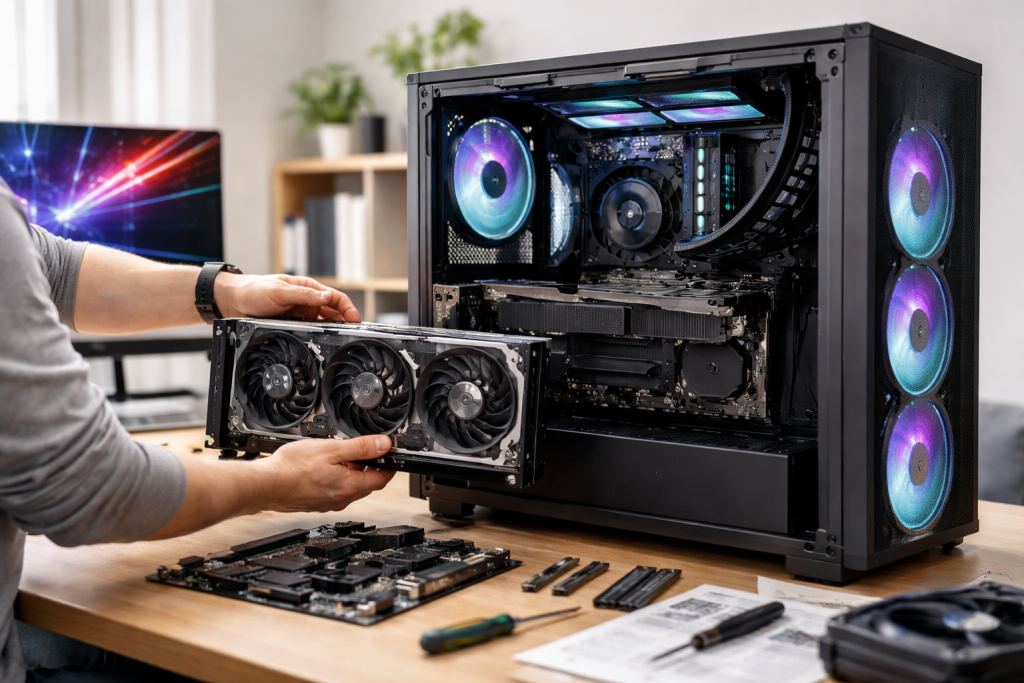
The allure of a customized PC extends far beyond mere novelty. The advantages are tangible, impacting performance, cost, and user experience in significant ways. For those who crave peak performance, the ability to select and integrate components for specific tasks like gaming, video editing, or 3D rendering is paramount. Pre-built systems often make compromises by including adequate but not exceptional parts or bundling unnecessary features at a premium.
Contents
- 0.1 Unparalleled Customization and Performance
- 0.2 Cost-Effectiveness and Value
- 0.3 Knowledge and Empowerment
- 0.4 The Core of the System: CPU and Motherboard
- 0.5 Graphics and Memory: The Visual Powerhouses
- 0.6 Storage and Power: Foundation and Endurance
- 0.7 Cooling and Case: Maintaining Performance and Aesthetics
- 0.8 Preparing Your Workspace and Components
- 0.9 Installing the Core Components
- 0.10 Installing the Graphics Card and Storage
- 0.11 Connecting Power and Final Touches
- 0.12 Initial Boot and BIOS Configuration
- 0.13 Understanding Overclocking
- 0.14 The Process of Overclocking
- 0.15 Customization Beyond Performance
- 0.16 Initial Boot Failures
- 0.17 Component Recognition and Stability Issues
- 0.18 Software and Driver Problems
- 0.19 Smart Component Purchasing
- 0.20 Longevity and Reduced Repair Costs
- 0.21 Future-Proofing Through Design
- 0.22 Common Upgrade Paths
- 0.23 The Role of the Case
- 0.24 Lighting and Visual Enhancements
- 0.25 Internal Organization and Presentation
- 0.26 The Pride of Ownership
- 0.27 Experiencing Peak Performance
- 0.28 Regular Cleaning and Dust Management
- 0.29 Software and Driver Updates
- 0.30 Performance Monitoring and Optimization
- 1 FAQs
- 1.1 1. What are the benefits of building your own high-performance desktop PC?
- 1.2 2. How do I choose the right components for my DIY desktop PC build?
- 1.3 3. Can you provide a step-by-step guide to assembling a DIY high-performance desktop PC?
- 1.4 4. What are the cost-saving benefits of building your own desktop PC?
- 1.5 5. How can I troubleshoot common issues when building my own desktop PC?
Unparalleled Customization and Performance
- Tailored Performance: The most compelling benefit is the ability to dictate exactly what goes into your system. You can choose the fastest CPU for your budget, a graphics card that excels at your preferred resolution and frame rates, and ample, high-speed RAM for demanding applications. This granular control ensures your PC is a perfectly tuned instrument for your specific workload.
- Future-Proofing: By strategically selecting components, you can construct a system that can withstand future technological advancements for an extended period. You can invest in a robust motherboard that supports future CPU upgrades or a power supply that can handle more powerful graphics cards down the line, allowing for smoother and more cost-effective upgrades.
Cost-Effectiveness and Value
- Maximizing Your Budget: When you build your own PC, you eliminate the markup associated with pre-built systems. This means you can often get more powerful components for the same amount of money or achieve a desired level of performance for a lower overall cost. Every dollar spent goes directly toward the hardware that matters most to you.
- Avoiding Bloatware: Pre-built PCs often come loaded with unnecessary software, or “bloatware,” which can consume system resources and potentially pose security risks. Building your own ensures you have a clean operating system installation, free from unwanted additions.
Knowledge and Empowerment
- Deepening Technical Understanding: The process of research, selection, and assembly provides an invaluable education in computer hardware. You’ll learn how different components interact, what specifications are important, and how to identify bottlenecks. This knowledge is empowering, making you a more informed consumer and a more capable troubleshooter.
- Sense of Accomplishment: There’s an undeniable sense of pride and satisfaction that comes from building something with your hands, especially when that something is a powerful, functional computer. This accomplishment can breed confidence and a willingness to tackle future technical challenges.
The heart of any successful DIY PC build lies in diligent component selection. This stage demands research, careful consideration of your needs, and an understanding of how each part contributes to the overall system. Each component plays a crucial role in creating a high-performing and reliable machine.
The Core of the System: CPU and Motherboard
- Central Processing Unit (CPU): The CPU is the brain of your computer. For high-performance builds, consider processors from Intel’s Core i7 or i9 series, or AMD’s Ryzen 7 or Ryzen 9. Think about the clock speed and the number of cores—more cores are generally better for multitasking and demanding applications like video rendering. Research benchmarks for the specific CPUs you’re considering for the tasks you intend to perform.
- Motherboard: The motherboard acts as the central hub, connecting all other components. It needs to be compatible with your chosen CPU (check the socket type—e.g., LGA 1700 for Intel, AM5 for AMD). For high-performance systems, look for motherboards with robust VRMs (Voltage Regulator Modules) to handle power delivery to the CPU, especially if you plan to overclock. Features like ample RAM slots, multiple M.2 slots for fast storage, and good I/O (Input/Output) options are also important.
Graphics and Memory: The Visual Powerhouses
- Graphics Processing Unit (GPU): This is arguably the most critical component for gaming and graphically intensive tasks like 3D modeling and video editing. NVIDIA’s GeForce RTX series and AMD’s Radeon RX series are the primary contenders. Research the specific model that aligns with your desired performance level and budget. Pay attention to VRAM (Video RAM)—more VRAM is generally better for higher resolutions and complex textures.
- Random Access Memory (RAM): RAM is your computer’s short-term memory. For a high-performance build, 16GB is a good starting point, but 32GB or even 64GB is highly recommended for demanding applications and heavy multitasking. Consider the speed (measured in MHz) and latency (CL) of the RAM, as faster RAM can offer a noticeable performance boost, especially with certain CPU architectures. Ensure the RAM type (e.g., DDR4 or DDR5) is compatible with your motherboard.
Storage and Power: Foundation and Endurance
- Storage Devices: Solid-State Drives (SSDs) are essential for rapid boot times and application loading. For a primary drive, an NVMe M.2 SSD is the top choice for speed. Consider a larger capacity SSD for your operating system and frequently used programs, and potentially a larger Hard Disk Drive (HDD) or a secondary, smaller SSD for bulk storage of files and games.
- Power Supply Unit (PSU): A reliable PSU is crucial for the stability and longevity of your system. Calculate the total power consumption of all your components using an online PSU calculator. It’s always a beneficial idea to get a PSU with a higher wattage than your calculated need to provide headroom and ensure efficient operation. Look for PSUs with an 80 Plus Bronze, Silver, Gold, or Platinum certification, indicating better energy efficiency.
Cooling and Case: Maintaining Performance and Aesthetics
- Cooling Solutions: High-performance components generate heat. An adequate cooling solution is essential to prevent throttling and ensure optimal performance. This includes a CPU cooler (air cooler or liquid cooler) and sufficient case fans to ensure good airflow.
- Computer Case: The case houses all your components. Consider its size (ATX, Micro-ATX, or Mini-ITX), airflow capabilities, ease of cable management, and aesthetic appeal. Ensure it has sufficient room for your chosen components, especially larger GPUs and CPU coolers.
The assembly process is where your research and planning come to life. While it may seem daunting at first, by following a methodical approach, you can build your PC with confidence. Remember to work in a clean, well-lit area and ground yourself periodically to prevent electrostatic discharge.
Preparing Your Workspace and Components
- Gather Your Tools: You’ll primarily need a Phillips head screwdriver (a magnetic tip is a lifesaver), zip ties or Velcro straps for cable management, and possibly an anti-static wrist strap. Have your component manuals readily accessible.
- Unpack and Inspect: Carefully unpack each component, checking for any visible damage. Keep all manuals and accessories organized.
Installing the Core Components
- Motherboard Preparation: Install the CPU onto the motherboard according to the motherboard manual. Be extremely careful to align the CPU correctly with the socket. Then, install the RAM modules into the designated slots. Ensure they click securely into place. If your motherboard supports M.2 SSDs, install it now by screwing it into the M.2 slot.
- Mounting the Motherboard: Install the I/O shield into the PC case, then carefully place the motherboard into the case, aligning its screw holes with the standoffs. Secure it with screws.
Installing the Graphics Card and Storage
- Graphics Card Installation: Open the appropriate PCIe slot on the back of the case, then carefully insert the GPU into the topmost PCIe x16 slot on the motherboard. Ensure it’s fully seated and secure it with screws.
- Storage Drive Installation: Install your SATA SSDs or HDDs into the drive bays of your case. Connect the SATA data cables to the motherboard and the SATA power cables from the PSU.
Connecting Power and Final Touches
- Power Supply Unit (PSU) Installation: Mount the PSU in its designated bay within the case. Begin connecting the necessary power cables from the PSU to the motherboard (24-pin ATX connector and 4/8-pin CPU power connector), GPU (PCIe power connectors), and storage devices.
- Fan and Cable Management: Install any additional case fans. Connect their power cables to the motherboard or PSU. Neatly route all cables using zip ties or Velcro straps to promote excellent airflow and a clean look. This is a critical step for both aesthetics and thermal performance.
Initial Boot and BIOS Configuration
- First Boot: Connect your monitor, keyboard, and mouse. Power on the PI. If everything is connected correctly, you should see the BIOS screen.
- BIOS/UEFI Settings: Enter the BIOS/UEFI setup. Check that all your installed components are recognized. You may want to enable XMP (Extreme Memory Profile) for your RAM to run it at its advertised speeds. Set your primary boot device to your SSD.
Once your PC is up and running, the adventure of maximizing its potential truly begins. Overclocking and careful customization can push your hardware beyond its factory specifications, unlocking a significant performance boost for demanding tasks. However, this process requires caution and a thorough understanding of your hardware’s limits.
Understanding Overclocking
- What is Overclocking: Overclocking involves increasing the clock speed of your CPU and GPU beyond their default settings. This allows them to perform more calculations per second, leading to improved performance in applications and games.
- Risks and Rewards: The primary reward is increased performance. However, overclocking generates more heat and can put additional strain on your components. If done improperly, it can lead to instability, reduced component lifespan, or even permanent damage. It is crucial to proceed with caution, starting with small increments and thorough testing.
The Process of Overclocking
- CPU Overclocking: This is typically done within the BIOS/UEFI. You’ll adjust the CPU multiplier and voltage. Start with small increases to the multiplier and test for stability using benchmarking software and stress tests. Monitor CPU temperatures closely.
- GPU Overclocking: This approach is usually done using software provided by the GPU manufacturer (e.g., NVIDIA’s GeForce Experience or AMD’s Adrenalin Software) or third-party tools like MSI Afterburner. You’ll adjust the core clock, memory clock, and potentially voltage. Again, gradual increases and thorough testing are paramount, with constant monitoring of temperatures and performance.
Customization Beyond Performance
- Fan Curves and Noise Management: You can customize fan curves in your BIOS/UEFI or with dedicated software. This allows you to dictate how quickly your fans spin up in response to temperature increases, balancing cooling performance with noise levels.
- Power Management Settings: Adjusting Windows power plans can also slightly impact performance and power consumption. For maximum performance, you’ll typically want to select the “High Performance” plan, though this can increase energy usage.
Even with careful planning, encountering issues during a PC build is common. Remaining calm and following a systematic troubleshooting approach will help you resolve problems efficiently and get your system up and running.
Initial Boot Failures
- No Power or Display: This is often the most concerning. Double-check all power cable connections to the motherboard, GPU, and PSU. Ensure the PSU switch is on. Verify the CPU power connector is properly seated. If you have a modular PSU, ensure the internal cables are firmly plugged into the PSU itself.
- POST (Power-On Self-Test) Errors: If the PC powers on but doesn’t display anything or shows error codes (often indicated by beeps or diagnostic LEDs on the motherboard), consult your motherboard manual. These codes can point to specific component failures, such as RAM issues or CPU problems.
Component Recognition and Stability Issues
- Component Not Detected: If a component, like RAM or an SSD, isn’t recognized in the BIOS, try reseating it. For RAM, try booting with a single stick at a time in different slots. For storage, check both power and data cable connections.
- Various factors can cause system crashes or freezes. Overheating is a common culprit, so monitor your CPU and GPU temperatures. Unstable overclocks are also frequent offenders. Try reverting any overclocking settings to default. Driver issues can also cause instability; ensure you have the latest drivers installed for your motherboard chipset and GPU.
Software and Driver Problems
- Driver Conflicts: After installing Windows, it’s crucial to install the correct drivers for your motherboard, GPU, and other peripherals. Sometimes, older drivers can cause conflicts. Perform a clean install of the latest drivers.
- Operating System Instability: If Windows runs poorly or crashes frequently, consider if your storage drive is functioning correctly. If you suspect a hard drive issue, run diagnostic tools. Reinstalling the operating system can sometimes resolve deep-seated software problems.
While the initial investment in components for a high-performance PC can seem substantial, the long-term cost-saving benefits of building your own are significant and often underestimated. This approach empowers you to invest wisely and avoid unnecessary expenditures.
Smart Component Purchasing
- Avoiding Manufacturer Markups: As mentioned earlier, pre-built systems incorporate profit margins for the manufacturer and retailer, costs that are absent when you buy individual components directly from retailers or manufacturers. This allows you to allocate more of your budget to the components that deliver the most performance.
- Shopping for Deals: The PC hardware market is dynamic. By building your own, you can actively seek sales, discounts, and bundle deals on individual components. Waiting for price drops on specific parts can lead to considerable savings over time.
- Targeted Upgrades: Instead of buying a new, expensive pre-built system every few years, a DIY approach allows for strategic upgrades. You can replace a single component, like the graphics card, to bring your existing system up to par with new demands, a far more cost-effective solution than a full system replacement.
Longevity and Reduced Repair Costs
- Higher Quality Components: When building your own, you have the freedom to select components based on reputation and quality, rather than those chosen by a manufacturer for cost-effectiveness in a pre-built package. Investing in a robust power supply or a better-cooled GPU can lead to a longer lifespan for those parts.
- Familiarity Breeds Efficiency: Having built your PC, you are intimately familiar with its hardware. This makes troubleshooting and minor repairs significantly easier and often less expensive. You can diagnose issues yourself and potentially replace a faulty component without needing to pay for labor costs associated with a repair shop.
One of the most significant long-term advantages of building your own PC is the inherent flexibility for upgrades and expansion. Your initial build is a foundation, not a finished product, allowing you to adapt and enhance your system as technology evolves and your needs change.
Future-Proofing Through Design
- Choosing a Scalable Platform: When selecting your motherboard and power supply, consider their future capabilities. A motherboard with multiple RAM slots and the latest CPU socket type allows for easier CPU and RAM upgrades. A sufficiently powerful PSU with extra wattage capacity can support a more powerful graphics card in the future.
- Modular Design: The inherent modularity of desktop PC components means that upgrading is often as simple as swapping out one part for another. This stands in stark contrast to the often-proprietary and integrated nature of components in many laptops or all-in-one computers.
Common Upgrade Paths
- Graphics Card (GPU): This is often the first component to be upgraded, especially for gamers and content creators, as games and software become more demanding. Replacing your GPU can dramatically improve gaming performance and rendering speeds.
- RAM: If you find yourself running out of memory for multitasking or using memory-intensive applications, adding more RAM is a straightforward upgrade that can significantly improve system responsiveness.
- Storage: As your digital library grows, you might need more storage space. You can easily add more SSDs or HDDs to your system or even replace existing drives with larger, faster models.
- CPU: While a more involved upgrade that requires compatibility checks with your motherboard, upgrading the CPU can provide a noticeable performance boost for CPU-bound tasks.
Beyond raw performance, a DIY PC build offers the ultimate canvas for personal expression. The aesthetics of your machine are as much a part of the build as its internal components, allowing you to create a system that is not only powerful but also visually stunning and reflective of your personal style.
The Role of the Case
- Form Factor and Design: Cases come in a vast array of sizes, materials, and designs, from minimalist to aggressively styled. You have the option to select a case that either blends seamlessly with your desk setup or stands out as a standalone piece.
- Windowed Side Panels: Many modern cases feature tempered glass side panels, offering a clear view of your internal components. This is where the artistic aspect of PC building truly shines.
Lighting and Visual Enhancements
- RGB Lighting: Addressable RGB (ARGB) lighting has revolutionized PC aesthetics. You can outfit your components—RAM, fans, motherboard, GPU, and even peripherals—with customizable LED lighting. Software allows you to synchronize colors, patterns, and effects, transforming your PC into a dynamic visual display.
- Custom Cables: Standard PSU cables are often black. For a truly polished look, consider custom-sleeved PSU cables in a color scheme that matches your build. This adds a premium touch and can significantly improve internal visual appeal.
Internal Organization and Presentation
- Cable Management: Beyond its functional benefits for airflow, meticulous cable management is an art form in itself. Carefully routing and concealing cables behind the motherboard tray and within drive cages creates a clean, uncluttered interior that enhances the impact of any illuminated components.
- Component Choices: Even the color and design of individual components can be chosen to contribute to a cohesive aesthetic. Black components are standard, but increasingly, manufacturers offer white or other colored options to facilitate specific build themes.
The culmination of your DIY PC project is a deeply rewarding experience. It’s the moment when all your planning, research, and careful assembly come together to create a machine that is uniquely yours, performing at a level you’ve meticulously engineered. This satisfaction extends beyond the initial boot-up and into the daily use of your creation.
The Pride of Ownership
- Personal Accomplishment: There’s an inherent sense of pride that comes with knowing you built this powerful machine yourself. You understand every component, its purpose, and how it contributes to the overall function. This ownership is more profound than simply unboxing a pre-built system.
- Unique Identity: Your PC is no longer just a generic piece of technology; it’s a personalized extension of yourself. The aesthetic choices, the performance tuning, and the custom configuration all contribute to a machine that perfectly reflects your personality and needs.
Experiencing Peak Performance
- Unleashing Potential: When you boot up your newly built PC and it effortlessly handles demanding games, complex rendering tasks, or vast datasets, the payoff for your efforts is immense. You’re not just using a computer; you’re experiencing the peak performance you designed and built for.
- Empowerment Through Knowledge: The knowledge gained throughout the building process empowers you to be a more independent and capable user. You’re less reliant on support or technicians for basic issues and more confident in exploring the full capabilities of your machine. The act of creation has fostered self-reliance.
Building a high-performance PC is just the beginning. To ensure it continues to deliver optimal performance and a long, stable lifespan, a commitment to regular maintenance and ongoing optimization is crucial. This proactive approach will prevent performance degradation and potential issues down the line.
Regular Cleaning and Dust Management
- Internal Cleaning: Dust poses a significant threat to electronics. It impedes airflow, traps heat, and can even cause component failure. Periodically (every few months, or more often in dusty environments), power down your PC, disconnect it, and carefully use compressed air to blow dust out of fans, heatsinks, radiators, and other components. Pay close attention to GPU fans and CPU cooler fins.
- Maintain the cleanliness of your case’s exterior to avoid drawing dust into the system. Regularly clean the surfaces with a soft, dry cloth.
Software and Driver Updates
- Operating System Updates: Ensure your Windows installation is always up-to-date. Microsoft regularly releases patches that address security vulnerabilities and improve system stability and performance.
- Driver Updates: Regularly check for and install the latest drivers for your motherboard chipset, graphics card, and any other peripherals. These updates often include performance optimizations and bug fixes that can significantly impact your system’s behavior.
- BIOS/UEFI Updates: While less frequent, motherboard BIOS/UEFI updates can offer improved hardware compatibility, stability fixes, and sometimes even performance enhancements. Consult your motherboard manufacturer’s website for the latest updates, and follow their instructions carefully.
Performance Monitoring and Optimization
- Temperature Monitoring: Continuously monitor the temperatures of your CPU and GPU, especially during demanding tasks. Tools like HWMonitor or MSI Afterburner can provide real-time temperature readings. If temperatures are consistently high, you may need to reapply thermal paste, improve case airflow, or consider a better cooling solution.
- Storage Health: Regularly check the health of your storage drives. SSDs have a finite lifespan, and while modern drives are very durable, monitoring their health with diagnostic tools can alert you to potential issues before data loss occurs.
- Startup Programs: Review the programs that launch automatically when your PC starts. Disable unnecessary startup items to speed up boot times and free up system resources. The above task can be done through Task Manager in Windows.
- Disk Cleanup and Defragmentation (for HDDs): Periodically run Windows’ Disk Cleanup tool to remove temporary files and other junk. If you still use traditional Hard Disk Drives (HDDs), regularly defragment them to improve file access times. SSDs do not require defragmentation.
Building and maintaining your own high-performance desktop PC is a rewarding and empowering endeavor. It combines technical skill with creative expression, offering unparalleled control over your computing experience and a deep sense of satisfaction from creation to ongoing optimization.
FAQs
1. What are the benefits of building your own high-performance desktop PC?
Building your own high-performance desktop PC allows you to customize the components to fit your specific needs, potentially saving money compared to pre-built options, and providing a sense of satisfaction and pride in your creation.
2. How do I choose the right components for my DIY desktop PC build?
When choosing components for your DIY desktop PC build, consider factors such as your budget, intended use (gaming, video editing, etc.), compatibility between components, and future upgrade potential.
3. Can you provide a step-by-step guide to assembling a DIY high-performance desktop PC?
Assembling a DIY high-performance desktop PC involves steps such as installing the CPU, motherboard, RAM, storage, graphics card, power supply, and cooling system, followed by cable management and system testing.
4. What are the cost-saving benefits of building your own desktop PC?
Building your own desktop PC can potentially save money compared to purchasing a pre-built system, as you have the flexibility to choose cost-effective components and avoid paying for assembly labor.
5. How can I troubleshoot common issues when building my own desktop PC?
Common issues when building a desktop PC include compatibility problems, hardware malfunctions, and system errors. Troubleshooting involves double-checking connections, testing components individually, and seeking help from online communities or professional technicians when needed.

With over 5 years of experience in digital learning and productivity, we specialize in creating practical and easy-to-follow solutions.Our expertise focuses on simplifying complex concepts into clear, actionable strategies for everyday use.We are committed to helping learners and professionals improve efficiency, build skills, and achieve consistent growth.