DIY Tech: How to Install a New Hard Drive in 5 Easy Steps
Your computer, once a lightning-fast workhorse, might be showing its age. Applications load slowly, files take an eternity to transfer, and error messages are becoming a regular occurrence. Often, the culprit is a struggling, old hard drive. Don’t despair! Upgrading your hard drive is a surprisingly straightforward DIY project that can inject new life into your machine, and you don’t need to be a tech guru to accomplish it. This comprehensive guide will walk you through the entire process, empowering you to tackle this upgrade with confidence.
Contents
- 0.1 Understanding the Basics: What You Need to Know Before Installing a New Hard Drive
- 0.2 Step 1: Preparing Your Computer for the Installation Process
- 0.3 Step 2: Choosing the Right Hard Drive for Your Computer
- 0.4 Step 3: Physically Installing the New Hard Drive
- 0.5 Step 4: Connecting and Configuring the New Hard Drive
- 0.6 Step 5: Testing and Verifying the Installation
- 0.7 Troubleshooting Common Issues During the Installation Process
- 0.8 Tips for Maintaining and Optimizing Your New Hard Drive
- 0.9 Upgrading Your Computer’s Storage: Exploring Other Options
- 0.10 Final Thoughts: Enjoying the Benefits of a New Hard Drive
- 1 FAQs
- 1.1 1. What are the basic things I need to know before installing a new hard drive?
- 1.2 2. How do I physically install a new hard drive in my computer?
- 1.3 3. What are some common issues that may arise during the installation process, and how can I troubleshoot them?
- 1.4 4. What tips can help me maintain and optimize my new hard drive for better performance?
- 1.5 5. What are some alternative options for upgrading my computer’s storage, aside from installing a new hard drive?
Understanding the Basics: What You Need to Know Before Installing a New Hard Drive
Before you even think about opening your computer’s case, it’s crucial to understand a few fundamental concepts about hard drives. This knowledge will guide your choices and ensure a smooth installation.
What is a Hard Drive?
At its core, a hard drive is your computer’s long-term memory. It’s where your operating system, programs, documents, photos, and videos are permanently stored. Unlike RAM (Random Access Memory), which only holds data actively being used, the hard drive retains data even when your computer is turned off.
Types of Hard Drives: HDD vs. SSD
Historically, computers primarily used Hard Disk Drives (HDDs). These mechanical devices store data on spinning platters accessed by read/write heads. While still affordable and offering large storage capacities, HDDs are slower and more prone to mechanical failure than their modern counterparts.
Solid State Drives (SSDs), on the other hand, use flash memory to store data, similar to a large USB drive. They have no moving parts, making them incredibly quick, durable, and energy-efficient. The performance boost an SSD offers is often the most significant upgrade you can make to an older computer. For most users, an SSD is the recommended choice for a new primary drive.
Interface Types: SATA and NVMe
Regardless of whether you choose an HDD or an SSD, you’ll encounter different interface types, which dictate how the drive connects to your motherboard.
SATA (Serial AT Attachment)
SATA is the most common interface for both HDDs and many SSDs. It offers respectable speeds and is universally compatible with most modern motherboards. SATA drives come in 2.5-inch and 3.5-inch form factors, with 2.5-inch being standard for laptops and smaller desktops and 3.5-inch for larger desktop cases.
NVMe (Non-Volatile Memory Express)
NVMe is a newer, much faster interface specifically designed for SSDs. It connects directly to your motherboard’s PCIe (Peripheral Component Interconnect Express) lanes, bypassing the SATA bottleneck and offering significantly higher data transfer speeds. NVMe SSDs typically come in M.2 form factors, which are small, rectangular sticks that plug directly into a dedicated slot on your motherboard. Not all motherboards support NVMe, so it’s essential to check your computer’s specifications.
Step 1: Preparing Your Computer for the Installation Process
Preparation is key to a successful upgrade. Rushing into it can lead to data loss or frustration.
Back Up Your Data
This cannot be stressed enough: back up all your essential data before you do anything. Use an external hard drive, cloud storage (like Google Drive or Dropbox), or a network-attached storage (NAS) device. While the goal is to install a new hard drive, unforeseen circumstances can always arise, and you don’t want to risk losing precious memories or important documents. Consider creating a full system image if you want to be able to restore your entire operating system and programs exactly as they were.
Gather Your Tools
You’ll need a few basic tools to get the job done: a Phillips head screwdriver (and potentially a flathead for some cases), an anti-static wrist strap (highly recommended to prevent static discharge from damaging sensitive components), and perhaps a small container to keep screws organized.
Power Down and Disconnect
Completely shut down your computer. Do not simply put it to sleep. Once it’s off, disconnect the power cable and all other peripherals (monitor, keyboard, mouse, USB devices, etc.). This ensures your safety and prevents any electrical surprises.
Open the Computer Case
Carefully open your computer’s case. Desktop cases usually have screws on the back panel that allow you to slide off a side panel. Laptops are more complex and require specific guides, often involving removing screws from the bottom and gently prying open the casing. Refer to your computer’s manual or an online tutorial for your specific model if you are unsure.
Step 2: Choosing the Right Hard Drive for Your Computer
This is where your understanding of hard drive basics comes into play. The right choice depends on your computer’s capabilities and your budget.
Determine Your Needs: Capacity and Speed
Consider how much storage you truly need. Are you a casual user, a gamer, or a video editor? A 500GB SSD might suffice for basic use, while a 1TB or 2TB SSD is better for larger media libraries or game collections. While capacity is important, for most users, prioritizing an SSD for speed over a larger HDD at the same price point is a wise decision for a primary drive. You can always add a secondary HDD later for mass storage if needed.
Check Motherboard Compatibility
This is crucial. For an SSD, determine if your motherboard supports SATA or NVMe.
SATA Compatibility
All modern motherboards have SATA ports. You’ll need to check if you have an available SATA data cable and power cable.
NVMe Compatibility
For NVMe, look for an M.2 slot on your motherboard. These slots are often labeled and can be horizontal or vertical. If you’re unsure, consult your motherboard’s manual or search online for your motherboard’s model number and “M.2 support.”
Consider Form Factor
If you’re replacing a 3.5-inch HDD in a desktop, a 2.5-inch SSD will fit perfectly into a 3.5-inch drive bay with an adapter bracket (often included with SSDs). For laptops, 2.5-inch SSDs are the standard replacement for HDDs. If you’re opting for an NVMe SSD, its M.2 form factor will simply slot into the appropriate M.2 slot.
Step 3: Physically Installing the New Hard Drive
This is the most hands-on part of the process. Take your time and be gentle.
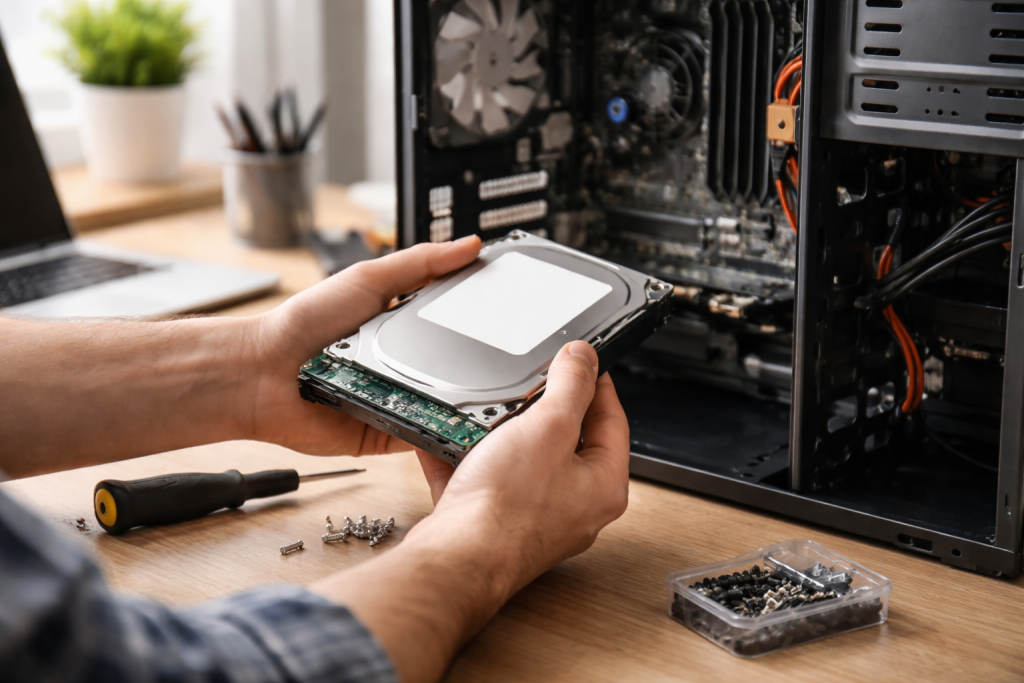
Locate the old hard drive if you are replacing it.
If you’re replacing an existing hard drive, locate it within your computer case. HDDs are usually secured in drive bays with screws or tool-less caddies.
Disconnect and Remove the Old Hard Drive
Carefully disconnect the SATA data cable and the SATA power cable from the old hard drive. If it’s an NVMe drive, gently unscrew the small retaining screw and pull the drive out. Unscrew any mounting screws or release any clips holding the hard drive in place, then carefully remove it from the bay.
Install the New Hard Drive
For 2.5-inch SATA Drives
Slide your new 2.5-inch SSD into an available drive bay. If you’re using a 3.5-inch bay, secure the SSD with an adapter bracket. Screw the drive (or bracket) firmly into place.
For NVMe M.2 Drives
Locate the M.2 slot on your motherboard. Gently insert the NVMe drive into the slot at a slight angle until it’s fully seated. Then, push it down and secure it with the small retaining screw.
Step 4: Connecting and Configuring the New Hard Drive
Once the physical installation is complete, it’s time to connect the cables and prepare the drive for use.
Connect Cables (For SATA Drives)
Connect the SATA data cable from the hard drive to an available SATA port on your motherboard. Then, connect a SATA power cable from your power supply unit (PSU) to the hard drive. For NVMe drives, no additional cables are needed.
Close the Computer Case
Before powering on, carefully reattach the side panel of your computer case. Do not overtighten screws.
Initial Boot and BIOS/UEFI Check
Reconnect your monitor, keyboard, and mouse. Power on your computer and immediately enter your computer’s BIOS or UEFI settings. The key to press (often F2, Del, F10, or F12) will be displayed on the screen during startup. In the BIOS/UEFI, verify that your new hard drive is recognized. It should appear under storage devices or boot devices.
Install Operating System or Clone Data
If this is your primary boot drive, you’ll need to install an operating system (like Windows, macOS, or Linux) onto it. This process usually requires booting from USB installation media. If you previously cloned your old hard drive’s data to the new one, you might need to adjust your boot order in the BIOS/UEFI to prioritize the new drive.
Initialize and Format the Drive
Once your operating system is running (either after a fresh install or successful boot with cloned data), you might need to initialize and format the new drive if it’s not the boot drive or if it’s a completely fresh installation. In Windows, you can do this through Disk Management. Right-click “This PC,” select “Manage,” then “Disk Management.” Find your new drive, right-click on it, choose “Initialize Disk,” and then “New Simple Volume” to format it.
Step 5: Testing and Verifying the Installation
Don’t skip this crucial step! You want to ensure everything is working as expected.
Perform Basic Functionality Checks
Open some applications, transfer files, and generally use your computer as you normally would. Observe if there are any unusual noises (for HDDs), slow performance, or error messages.
Run Benchmarks (Optional)
If you’ve upgraded to an SSD, you might want to run a benchmarking tool (like CrystalDiskMark for Windows) to confirm your new drive is achieving its advertised speeds. This is a useful way to verify proper installation and configuration.
Troubleshooting Common Issues During the Installation Process
Even with careful preparation, things can sometimes go wrong.
Computer Doesn’t Boot
Double-check all cable connections (power and data). Ensure the hard drive is securely seated in its bay or slot. Verify the boot order in your BIOS/UEFI. If installing an OS, confirm your bootable USB is correctly created.
Hard Drive Not Recognized
Check connections again. Go back into your BIOS/UEFI to see if the drive is listed. If not, try connecting it to a different SATA port (if applicable). For NVMe drives, ensure your motherboard supports NVMe and that the drive is fully seated.
Slow Performance
If your new SSD isn’t living up to expectations, ensure it’s running in AHCI mode in your BIOS/UEFI (usually the default for modern systems). Also, check if it’s connected to an SATA III port for optimal speed.
Tips for Maintaining and Optimizing Your New Hard Drive
Once your new drive is operational, a little maintenance can significantly improve its performance.
Keep Your Drive Clean
Regularly delete unnecessary files and empty your Recycle Bin or Trash. Use disk cleanup tools provided by your operating system.
Update Drivers and Firmware
Ensure your motherboard’s chipset drivers and your hard drive’s firmware are up to date. This can improve performance and stability.
Enable TRIM (For SSDs)
TRIM is a command that helps SSDs manage deleted data, optimizing performance and extending their lifespan. Modern operating systems automatically enable TRIM, but it’s beneficial to be aware of its importance.
Upgrading Your Computer’s Storage: Exploring Other Options
While replacing your primary hard drive is a significant upgrade, other storage solutions can further enhance your computer.
Adding a Secondary Drive
Many desktop computers have space for multiple drives. You can install an SSD for your operating system and frequently used programs and then add a larger, more affordable HDD for mass storage of media files.
External Drives
For incredibly portable storage, external hard drives or SSDs are excellent for backups, transferring large files, or extending storage without opening your computer case.
Cloud Storage
For off-site backups and ubiquitous access to your files, cloud storage services like Google Drive, Dropbox, or OneDrive offer convenient solutions, though they depend on your internet connection.
Final Thoughts: Enjoying the Benefits of a New Hard Drive
Congratulations! You’ve successfully upgraded your computer’s hard drive. You should now experience significantly faster boot times, quicker application loading, and overall improved system responsiveness. This DIY upgrade not only saves you money but also provides a deep understanding of your computer’s internal workings. Enjoy the renewed speed and efficiency of your revitalized machine—a testament to your newfound technical prowess!
FAQs
1. What are the basic things I need to know before installing a new hard drive?
Before installing a new hard drive, it’s important to understand the compatibility requirements for your computer, such as the type of hard drive interface (SATA, IDE, etc.) and the physical size of the hard drive (2.5-inch or 3.5-inch). You should also know how to back up and transfer data from your old hard drive to the new one.
2. How do I physically install a new hard drive in my computer?
To physically install a new hard drive, you will need to open your computer’s case, locate an available drive bay, and mount the hard drive securely using screws or a tool-less installation method. It’s important to handle the hard drive carefully and to ensure that it is properly connected to the power supply and data cables.
3. What are some common issues that may arise during the installation process, and how can I troubleshoot them?
Common issues during the installation process may include the computer not recognizing the new hard drive, errors during the data transfer process, or physical installation problems. Troubleshooting steps may involve checking the BIOS settings, ensuring proper cable connections, and using diagnostic tools to identify any hardware issues.
4. What tips can help me maintain and optimize my new hard drive for better performance?
To maintain and optimize your new hard drive, it’s important to regularly update your operating system and drivers, run disk cleanup and defragmentation utilities, and monitor the health of your hard drive using diagnostic software. Additionally, using the correct file system and avoiding excessive heat or physical shock can help prolong the life of your hard drive.
5. What are some alternative options for upgrading my computer’s storage, aside from installing a new hard drive?
In addition to installing a new hard drive, alternative options for upgrading your computer’s storage include adding a solid-state drive (SSD) for faster performance, using external hard drives or network-attached storage (NAS) for additional storage capacity, or utilizing cloud storage services for off-site backups and file access. Each option has its benefits and considerations based on your specific needs.

With over 5 years of experience in digital learning and productivity, we specialize in creating practical and easy-to-follow solutions.Our expertise focuses on simplifying complex concepts into clear, actionable strategies for everyday use.We are committed to helping learners and professionals improve efficiency, build skills, and achieve consistent growth.