
Unleash the Power of Your PC: The Ultimate Guide to Upgrading Your Graphics Card
Unleashing the digital beast within your computer is often a journey that leads directly to the heart of its visual processing capabilities. For numerous PC users, the graphics card, also known as the GPU, quietly drives everything from spreadsheets to expansive virtual worlds. Yet, for those seeking peak performance, especially in gaming, video editing, or 3D rendering, the graphics card is not just a component; it’s the engine of their digital experience. This comprehensive guide will illuminate the path to unlocking your PC’s full potential through strategic graphics card upgrades, ensuring every pixel renders with breathtaking clarity and speed.
Contents
- 0.1 Understanding the Importance of Upgrading Your Graphics Card
- 0.2 How to Choose the Right Graphics Card for Your PC
- 0.3 Step-by-Step Guide to Installing a New Graphics Card
- 0.4 Maximizing Performance: Overclocking Your Graphics Card
- 0.5 Troubleshooting Common Issues with Graphics Card Upgrades
- 0.6 The Benefits of Upgrading to a High-End Graphics Card
- 0.7 Upgrading Your Graphics Card on a Budget: Tips and Tricks
- 1 FAQs
- 1.1 1. Why is upgrading your graphics card important for your PC?
- 1.2 2. How do I choose the right graphics card for my PC?
- 1.3 3. What are the steps for installing a new graphics card in my PC?
- 1.4 4. What are the benefits of upgrading to a high-end graphics card?
- 1.5 5. What are some common issues that may arise when upgrading a graphics card, and how can they be troubleshot?
Understanding the Importance of Upgrading Your Graphics Card
The graphics card serves as the dedicated brain for all visual computations your computer performs. Its role has become increasingly critical as software and media become more graphically intensive. A powerful GPU renders frames faster, supports higher resolutions, and enables advanced graphical effects, such as ray tracing, which simulates light behaviour for hyperrealistic visuals. Without a capable graphics card, even the most robust CPU can find itself bottlenecked, leading to stuttering gameplay, slow rendering times, and an overall subpar visual experience. Upgrading isn’t just about playing the latest games; it’s about future-proofing your system, enhancing productivity in creative applications, and ensuring a smooth, responsive computing experience across the board.
The Bottleneck Effect and Its Implications
One of the primary reasons to upgrade your graphics card is to alleviate the “bottleneck effect”. This occurs when one component in your system limits the performance of others. If your CPU is powerful but your GPU is outdated, your system won’t be able to process and display graphical information fast enough, causing your CPU to wait. Conversely, a very powerful GPU with a weak CPU can also lead to a bottleneck, though this scenario is less common with modern gaming PCs. Identifying and addressing these bottlenecks is crucial for achieving balanced system performance.
Impact on Non-Gaming Applications
While gamers often prioritise graphics card upgrades, their benefits extend far beyond the realm of virtual worlds. Professionals in fields such as graphic design, architectural visualisation, video editing, and academic research relying on GPGPU (General-Purpose computing on Graphics Processing Units) leverage high-end GPUs for drastic reductions in rendering times and computational speeds. Machine learning and artificial intelligence tasks, in particular, are heavily dependent on the parallel processing power unique to modern graphics cards, making them indispensable tools for scientific and technological advancement.
How to Choose the Right Graphics Card for Your PC
Selecting the ideal graphics card involves a careful consideration of several factors, including your budget, your PC’s current specifications, and your intended use. The market is broadly divided between Nvidia’s GeForce series and AMD’s Radeon series, both offering a range of cards from entry-level to enthusiast-grade.
Matching Your GPU to Your CPU and Power Supply
Compatibility is paramount. First, ensure your CPU is powerful enough to pair with your new GPU without creating a significant bottleneck. Online bottleneck calculators can provide a rough estimate, but general wisdom suggests not pairing a budget CPU with a high-end GPU. Second, check your power supply unit (PSU). Modern graphics cards can be power-hungry, and an underpowered PSU can lead to system instability, crashes, or even hardware damage. Always consult the recommended PSU wattage for your chosen graphics card.
Considering VRAM and Clock Speed
Video RAM (VRAM) is crucial for storing textures and other graphical data. For modern gaming at 1080p, 8GB of VRAM is often considered a good starting point, while 1440p and 4K resolutions demand more, typically 12GB or even 16GB. Clock speed (measured in MHz) indicates how fast the GPU core can process data, with higher numbers generally signifying better performance. However, clock speed alone is not the sole determinant of performance; the underlying architecture and number of processing cores also play significant roles.
Understanding Display Connectors and Form Factor
Graphics cards come with various display outputs, including HDMI, DisplayPort, and sometimes DVI. Ensure your monitor has compatible inputs. Also, consider the physical size of the graphics card. High-end cards can be quite large, requiring ample space within your PC case. Measure your case’s internal dimensions, specifically the length and width clearance for the PCIe slot, to avoid purchasing a card that simply won’t fit.
Step-by-Step Guide to Installing a New Graphics Card
Installing a graphics card might seem daunting, but it’s a straightforward process that most PC users can accomplish with a little patience.
Pre-Installation Preparations
Before you even open your PC case, back up any important data. Next, download the latest drivers for your new graphics card from the manufacturer’s website. It’s often recommended to uninstall your old graphics drivers using a utility like Display Driver Uninstaller (DDU) before installing the new hardware to prevent conflicts. Finally, power down your PC, unplug it from the wall, and press the power button a few times to discharge any residual electricity.
Physical Installation
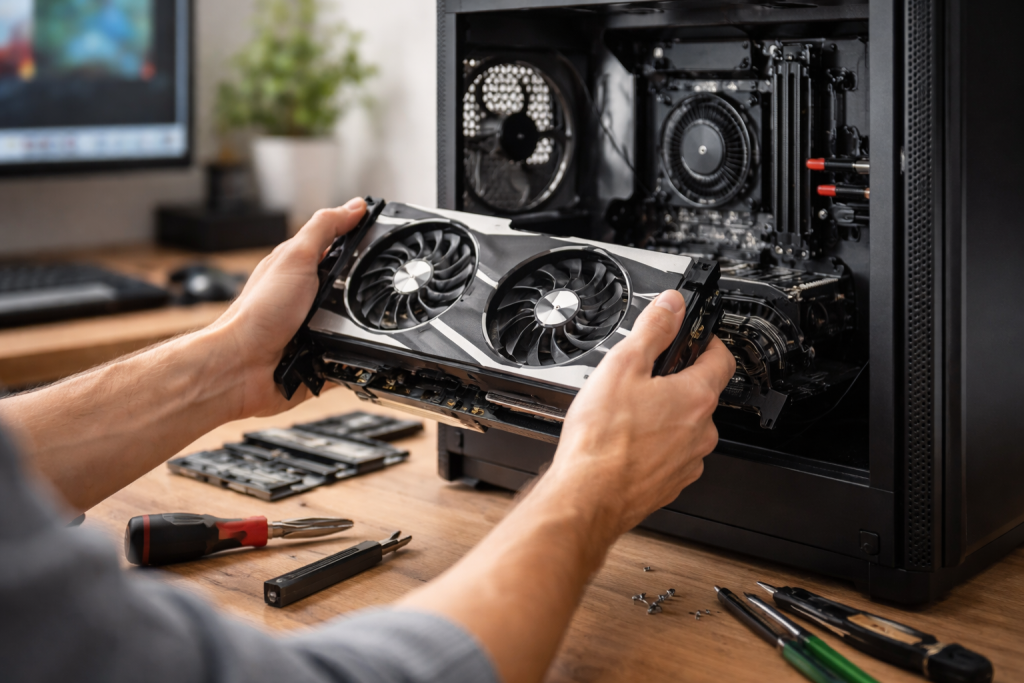
Open your PC case. Locate the PCIe x16 slot on your motherboard, which is typically the longest slot. If you’re replacing an existing card, carefully unscrew the retaining bracket and press the small lever at the end of the PCIe slot to release the old card. Gently pull it out. Insert your new graphics card into the PCIe slot, pressing firmly until it clicks into place. Screw it down with the retaining bracket. Connect any necessary PCIe power cables from your PSU to the graphics card (many modern cards require 6-pin, 8-pin, or even dual connectors). Close your PC case.
Post-Installation and Driver Installation
Once your PC is reassembled and powered on, it should boot up, possibly with a lower resolution initially. Install the drivers you downloaded earlier. Follow the on-screen prompts. After the installation is complete, a reboot will likely be required. Verify that the new graphics card is detected in the device manager of your operating system after your computer has restarted. You can then access the graphics card’s control panel (e.g., Nvidia Control Panel or AMD Radeon Software) to fine-tune settings and optimise performance for your specific needs.
Maximizing Performance: Overclocking Your Graphics Card
Overclocking is the process of increasing your graphics card’s clock speed and memory frequency beyond its factory settings to achieve higher performance. Although overclocking provides benefits, it also entails risks and requires a cautious approach.
Understanding the Risks and Rewards
The primary reward of overclocking is free performance. You push your hardware a bit harder to squeeze out extra frames per second or reduce rendering times. However, the risks include increased heat generation, which necessitates adequate cooling, and potential system instability, leading to crashes. In extreme cases, aggressive overclocking without proper cooling can even shorten the lifespan of your component.
Essential Tools and Techniques
To overclock, you’ll need dedicated software like MSI Afterburner or ASUS GPU Tweak. These tools allow you to adjust the core clock, memory clock, and voltage. Start with small increments, testing stability after each adjustment using a benchmarking tool or graphically intensive game. Monitor temperatures carefully; ideally, your GPU shouldn’t exceed 80-85°C under load. Increase the settings gradually until you achieve a balance between performance and stability.
Troubleshooting Common Issues with Graphics Card Upgrades
Even with careful preparation, issues can arise. Knowing how to diagnose and resolve them is crucial.
No Display or Black Screen
This is a common and alarming problem. First, double-check all connections: ensure the graphics card is fully seated in its PCIe slot, the power cables are securely connected, and your monitor cables are plugged into the new graphics card, not your motherboard’s integrated graphics outputs. If you still have no display, try booting with only one RAM stick, or test the card in another PCIe slot if available. Sometimes, a BIOS reset can also resolve display issues.
Driver Crashes and Blue Screens
Driver conflicts are a primary cause of system instability after a GPU upgrade. If you experience crashes or blue screens, revisit the driver uninstallation process using DDU in safe mode and perform a clean installation of the latest drivers. Ensure your operating system is fully updated as well. Occasionally, an unstable overclock can also manifest as crashes, so if you’ve already tinkered with settings, revert them to defaults for testing.
Overheating and Performance Throttling
High temperatures can cause your GPU to “throttle” its performance to prevent damage. This leads to reduced frame rates. Ensure your PC case has good airflow, with intake and exhaust fans properly orientated. Verify that the GPU’s fans are spinning and free of dust. If temperatures remain high, consider adjusting your fan curves in the GPU’s control panel or, for more advanced users, replacing the thermal paste on the GPU.
The Benefits of Upgrading to a High-End Graphics Card
A high-end graphics card transforms your computing experience in profound ways, serving as the cornerstone for superior performance.
Enhancing Gaming and Multimedia Experience with a New Graphics Card
For gamers, a powerful GPU means unlocking higher frame rates, enabling ray tracing, and playing games at native 4K resolution with all settings maxed out. This translates to incredibly immersive and cinematic experiences. For multimedia enthusiasts, it means seamless 4K video playback, accelerated video encoding and decoding, and smoother transitions in creative suites, making content consumption and creation a joyous rather than frustrating endeavour.
Future-Proofing Your PC: Upgrading Your Graphics Card for Longevity
While no PC upgrade can truly “future-proof” indefinitely, a high-end graphics card offers significant longevity. It allows you to play new titles and run demanding applications for years to come without needing an immediate replacement. As graphics-intensive software evolves, a more powerful GPU offers a buffer, ensuring your system remains capable and enjoyable for an extended period, delaying the next cycle of expensive upgrades.
Exploring the Latest Graphics Card Technologies and Features
Modern graphics cards are brimming with innovations. Technologies like Nvidia’s DLSS (Deep Learning Super Sampling) and AMD’s FSR (FidelityFX Super Resolution) use AI or advanced algorithms to render games at lower resolutions and upscale them to higher ones, providing significant performance boosts with minimal visual degradation. Ray tracing, once an exotic feature, is now becoming standard, offering unprecedented lighting, reflections, and shadows. These advancements make the upgrade even more compelling, as they fundamentally change the visual fidelity and performance landscape of modern computing.
Upgrading Your Graphics Card on a Budget: Tips and Tricks
While upgrading to a high-end graphics card can be a significant investment, it doesn’t always have to be expensive. Smart strategies can help you maximise your budget.
Considering Mid-Range and Older Generation Cards
Often, the sweet spot for value lies in the mid-range offerings of the current generation or even high-end cards from the previous generation. While these cards may not offer top-tier performance, they often offer an excellent price-to-performance ratio, capable of comfortably handling most titles at 1080p or even 1440p without being prohibitively expensive. Research benchmarks for older cards; sometimes a previous flagship can outperform a current-generation mid-range option at a lower price.
The Second-Hand Market and Refurbished Options
The used market, through reputable sellers on platforms like eBay, Facebook Marketplace, or dedicated subreddits, can offer substantial savings. Be cautious, however, and always request proof of functionality and original purchase. Refurbished cards from authorised retailers or manufacturers can also be a beneficial option, as they are typically tested and come with a limited warranty, offering a balance between cost savings and peace of mind.
Waiting for Sales and Promotions
Graphics card prices can fluctuate, often experiencing dips during major sales events like Black Friday, Cyber Monday, or Amazon Prime Day. Being patient can be beneficial in this situation. Retailers also frequently bundle games or accessories with graphics cards, adding extra value to your purchase. Subscribing to newsletters from major tech retailers or price-tracking websites can alert you to upcoming deals, allowing you to snag a powerful upgrade without draining your wallet entirely.
FAQs
1. Why is upgrading your graphics card important for your PC?
Upgrading your graphics card is important for improving the visual performance of your PC, especially for gaming and multimedia tasks. A new graphics card can enhance image quality, increase frame rates, and support higher resolutions, providing a better overall user experience.
2. How do I choose the right graphics card for my PC?
When choosing a graphics card, consider factors such as your budget, the specific requirements of the games or applications you use, compatibility with your PC’s power supply and motherboard, and the performance level you desire. Researching benchmarks and reviews can also help you make an informed decision.
3. What are the steps for installing a new graphics card in my PC?
To install a new graphics card, you will need to first uninstall the old drivers, power off your PC, remove the old graphics card, insert the new graphics card into the appropriate slot, secure it in place, and then install the new drivers. Following these steps will ensure a successful installation.
4. What are the benefits of upgrading to a high-end graphics card?
Upgrading to a high-end graphics card can result in significantly improved performance, allowing for smoother gameplay, faster graphics rendering, and support for advanced features such as ray tracing and virtual reality. It can also make sure your PC is ready for new games and programs that come out in the future.
5. What are some common issues that may arise when upgrading a graphics card, and how can they be troubleshot?
Common issues when upgrading a graphics card include driver conflicts, power supply issues, and compatibility problems. These can be troubleshooted by ensuring that old drivers are properly uninstalled, checking that the power supply can support the new card, and verifying compatibility with the motherboard and other components.

With over 5 years of experience in digital learning and productivity, we specialize in creating practical and easy-to-follow solutions.Our expertise focuses on simplifying complex concepts into clear, actionable strategies for everyday use.We are committed to helping learners and professionals improve efficiency, build skills, and achieve consistent growth.