
Unleash Your PC’s Power: A Beginner’s Guide to Upgrading RAM
Your personal computer, a powerful tool for work, entertainment, and creation, often runs into bottlenecks that hinder its full potential. One of the most impactful and surprisingly straightforward upgrades you can perform is boosting its Random Access Memory, or RAM. This guide will walk you through everything you need to know about understanding, choosing, installing, and optimising your PC’s RAM, empowering you to unlock a new level of performance.
Contents
- 0.1 Understanding the Importance of RAM in Your PC
- 0.2 How to Determine Your PC’s Current RAM Capacity
- 0.3 Choosing the Right Type of RAM for Your PC
- 0.4 Step-by-Step Guide to Installing RAM in Your PC
- 0.5 Troubleshooting Common Issues After Upgrading RAM
- 0.6 When Is the Right Time to Upgrade Your PC’s RAM?
- 1 FAQs
Understanding the Importance of RAM in Your PC
RAM is often referred to as your PC’s short-term memory. Unlike your hard drive or solid-state drive (SSD) which stores data permanently, RAM holds data that your computer is actively using or expects to use very soon. This includes the operating system, applications you have open, and files you are currently working on.
How RAM Works with Your Processor
When you initiate a program, the slower storage (SSD/HDD) loads its essential components into the much faster RAM. Your processor then accesses this data directly from RAM. The more RAM you have, the more programs and data your PC can juggle simultaneously without having to constantly swap information back and forth from the slower storage. This constant swapping, known as “paging” or using “virtual memory,” is a major cause of slowdowns and stuttering.
The Impact of Insufficient RAM
Imagine you’re trying to read several books at once, but you only have a tiny desk. You’d constantly be putting books away and pulling new ones out, wasting valuable time. Insufficient RAM creates a similar scenario for your PApplications load slowly, multitasking becomes a chore, and resource-intensive tasks like video editing or gaming can grind to a halt. Upgrading your RAM is like expanding that desk, allowing your PC to keep more information readily accessible, leading to a smoother, more responsive experience.
How to Determine Your PC’s Current RAM Capacity
Before you embark on your upgrade journey, it’s crucial to understand what you’re starting with. Knowing your current RAM capacity and its specifications will help you choose compatible and effective upgrades.
Checking RAM on Windows
For Windows users, the process is quite simple. You can right-click on the “Start” button, select “System”, and under “Device specifications,” you’ll see “Installed “Memory”. “Memory”. RAM”. This will tell you the total amount of RAM currently in your system. For more detailed information, such as the number of slots used and the speed of your existing RAM, you can open Task Manager (Ctrl+Shift+Esc), go to the “Performance” tab, and select “Memory.” This will display crucial details like the RAM speed (e.g., 2400 MHz,2400 MHz,2400 MHz, 3200 MHz), form factor (e.g., DIMM), and how many slots are currently occupied.
Checking RAM on macOS
Mac users can find their RAM information by clicking on the Apple logo in the top-left corner of the screen and selecting “About This memory”,Mac”. The “Overview” tab will display the total amount of RAM. For more specific details, like the type and speed, you can click on “System Report…” and navigate to “Memory” under the “Hardware” section.
Using Third-Party Software for Detailed Analysis
For even more in-depth information, including the manufacturer, part number, and individual module details, free third-party utilities like CPU-Z are invaluable. These tools provide a comprehensive overview of your system’s hardware, helping you make informed decisions about compatible upgrades.
Choosing the Right Type of RAM for Your PC
Selecting the correct RAM is paramount to a successful upgrade. Mismatching RAM types or speeds can lead to instability or your PC failing to boot altogether.
Understanding RAM Generations: DDR3, DDR4, and DDR5
The most critical factor is the RAM generation. Modern PCs primarily use DDR4 or the newer DDR5, while older systems might still use DDR3. These generations are not cross-compatible. A DDR4 module will not fit into a DDR3 slot, and vice versa. (SSD),You must identify which generation your motherboard supports. This information can usually be found in your motherboard’s manual, on the manufacturer’s website, or by using system information tools.
RAM Speed and Latency Explained
RAM speed (measured in MHz) indicates how many data cycles per second the memory can perform. Higher speeds generally result in better performance. Latency, often denoted as CAS Latency (CL), measures the delay between when the memory controller requests data and when the data becomes available. Lower latency is better. While higher speed is often prioritised, a good balance between speed and latency is ideal. Your motherboard will have a maximum supported RAM speed, so ensure any new modules don’t exceed that limit.
Form Factor: DIMM vs. SO-DIMM
Desktop PCs typically use longer RAM modules called DIMMs (Dual In-line Memory Modules). Laptops and some mini PCs use smaller modules known as SO-DIMMs (Small Outline Dual In-line Memory Modules). Visually distinguishing between the two is easy, but it’s crucial to know which form factor your system requires.
Capacity and Kit Configuration
Consider the total capacity you need. For general use, 16GB is a good baseline, while 32GB or more is recommended for gaming, content creation, or running multiple virtual machines. It’s often best to purchase RAM in matched kits (e.g., 2 x 8GB or 2 x 16GB). This ensures optimal compatibility and allows for “dual-channel” operation, which can significantly boost performance by enabling the CPU to access two RAM modules simultaneously. If you’re adding to existing RAM, try to match the brand, speed, and latency of your current modules as closely as possible to minimise potential compatibility issues.
Step-by-Step Guide to Installing RAM in Your PC
Installing RAM is one of the easiest PC upgrades, but careful attention to detail is essential.
Preparation: Safety First
Before you begin, ensure your PC is completely powered off and unplugged from the wall. Discharge any static electricity from your body by touching a grounded metal object, such as the metal chassis of your PC or a grounded power outlet housing. You might also consider an anti-static wrist strap for extra precaution. Clear your workspace and ensure good lighting.
Opening Your PC Case
Carefully remove the side panel of your desktop. Most cases use thumbscrews or a latching mechanism. For laptops, consult your manufacturer’s manual or an online guide specific to your model for instructions on accessing the RAM slots, as this can vary significantly.
Locating and Removing Old RAM (If Applicable)
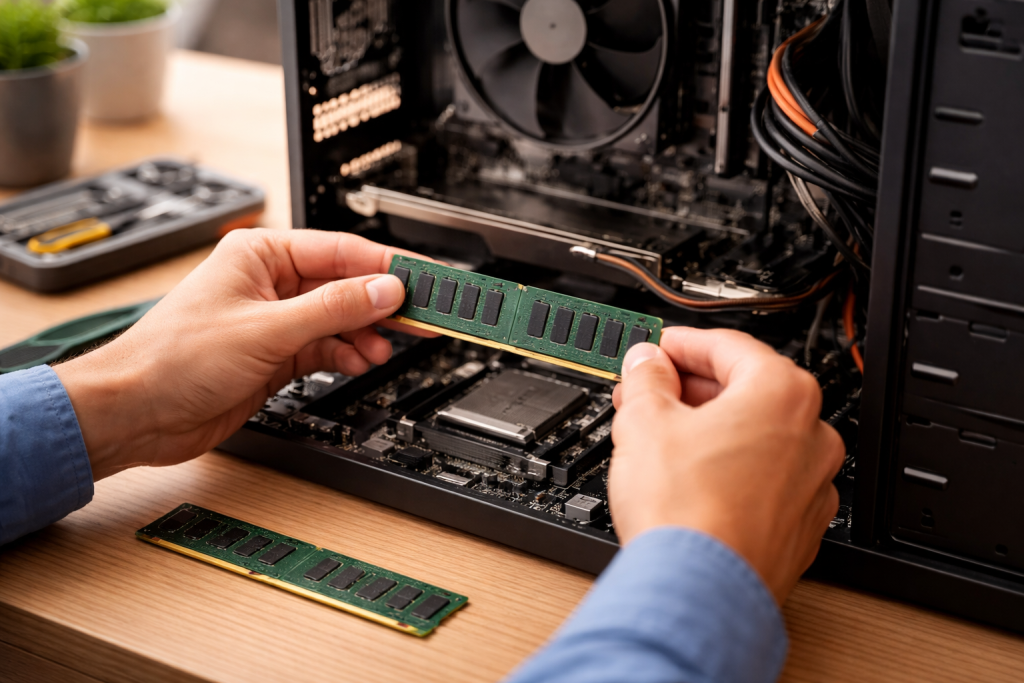
RAM sticks are typically held in place by two small plastic clips on either side of the slot. Gently press these clips outwards; the RAM stick will then pop up slightly. You can then carefully pull it straight out of the slot. Note the orientation of the notch on the RAM stick as you remove it.
Inserting New RAM Modules
Align the notch on the new RAM module with the corresponding key in the RAM slot. Gently press the RAM module straight down into the slot with even pressure on both ends. You’ll hear and feel a satisfying “click” as the clips automatically lock into place, securing the module. If the clips don’t automatically engage, gently push them inwards until they do. Do not force the RAM; if it doesn’t fit, double-check the orientation and make sure it’s the correct type for your motherboard.
Post-Installation Checks
Once your new RAM is installed, close your PC case and reconnect all cables. Boot up your computer. Your system should automatically detect the new RAM. You can verify this by checking the system information as described in the “Determining Your PC’s Current RAM Capacity” section. If your PC doesn’t boot or shows errors, recheck the installation and ensure the modules are firmly seated.
Troubleshooting Common Issues After Upgrading RAM
Occasionally, issues may arise after a RAM upgrade. Don’t panic; most problems are easily resolved.
PC Fails to Boot or Displays a Black Screen
This is the most common issue. First, double-check that the RAM modules are fully seated in their slots and that the clips are securely locked. Incorrect seating is a frequent culprit. Try removing and reinserting each module. If you’ve installed multiple modules, try booting with only one module installed at a time to identify a potentially faulty stick or slot.
Incorrect RAM Capacity Reported
If your system reports less RAM than you’ve installed, ensure all modules are properly recognised by the BIOS/UEFI. You may need to enter your system’s BIOS/UEFI settings (typically by pressing Del or F2 during startup) and check the memory information there. Sometimes, memory banking or specific slot requirements might mean certain slots need to be populated first or in pairs. Refer to your motherboard’s manual for specific instructions.
System Instability or Crashes
Random crashes, blue screens of death (BSODs), or application freezes can indicate unstable RAM. This can be due to incompatible modules, faulty RAM, or if you’ve tried to manually set RAM speeds beyond what your motherboard or CPU can stably handle (overclocking). If you’ve tinkered with XMP/DOCP profiles in your BIOS, try disabling them and letting the RAM run at its default JEDEC speeds. If issues persist, test the RAM with a memory diagnostic tool like MemTest86, which can identify faulty modules.
When Is the Right Time to Upgrade Your PC’s RAM?
Deciding when to upgrade your RAM comes down to observing your PC’s performance and your usage patterns.
Performance Bottlenecks and Lag
If you frequently experience slow application loading times, stuttering during multitasking, or your PC locks up when running resource-intensive programs, insufficient RAM is a likely cause. Observe your Task Manager (Windows) or Activity Monitor (macOS) to see your memory usage. If it’s consistently near 80-100%, an upgrade will significantly improve performance.
Future-Proofing for New Software and Games
Modern operating systems, applications, and games are constantly demanding more resources. Upgrading your RAM preemptively can ensure your PC remains relevant and capable of handling future software releases without immediate slowdowns. This is particularly true for gamers, content creators, and professionals using CAD or video editing software.
Specific Application Requirements
Certain applications have minimum and recommended RAM requirements. If you’re planning to use a new piece of software that demands more RAM than your current setup provides, an upgrade is a necessity. For example, video editing at higher resolutions (4K or 8K) or running large virtual machines can quickly consume vast amounts of RAM.
Cost-Benefit Analysis
Compared to upgrading a CPU or GPU, RAM upgrades are often one of the most cost-effective ways to get a noticeable performance boost. If your current system is generally solid but feels sluggish in specific scenarios, a RAM upgrade offers an excellent return on investment. It can even extend the lifespan of an older PC, postponing the need for an entirely new system.
FAQs
What is RAM, and why is it important for my PC?
RAM, or Random Access Memory, is a crucial component of your PC that allows it to store and access data quickly for active tasks. It is important for your PC because it directly impacts its performance and multitasking capabilities. Upgrading your RAM can lead to faster load times, smoother multitasking, and overall improved performance.
How can I determine my PC’s current RAM capacity?
To determine your PC’s current RAM capacity, you can simply right-click on the “My Computer” or “This PC” icon on your desktop or in File Explorer, then select “Properties”. This will display information about your PC, including the amount of installed RAM.
What are the common mistakes to avoid when upgrading RAM?
Common mistakes to avoid when upgrading RAM include not checking compatibility with your PC, not properly grounding yourself before installation, and not seating the RAM modules correctly. It’s also important to avoid purchasing the wrong type or amount of RAM for your specific PC model.
What are some tips for maximising the performance of my new RAM?
To maximise the performance of your new RAM, you can ensure that your PC’s operating system and drivers are up to date, close unnecessary background programs, and enable XMP (Extreme Memory Profile) in your BIOS if your RAM supports it. Additionally, running memory-intensive tasks on your PC can help take advantage of the upgraded RAM.
When is the right time to upgrade my PC’s RAM?
The right time to upgrade your PC’s RAM is when you notice performance issues such as slow load times, frequent freezing or crashing, or the inability to run multiple programs simultaneously without significant slowdown. Additionally, if you use memory-intensive applications such as video editing or gaming, upgrading your RAM can significantly improve your experience.

With over 5 years of experience in digital learning and productivity, we specialize in creating practical and easy-to-follow solutions.Our expertise focuses on simplifying complex concepts into clear, actionable strategies for everyday use.We are committed to helping learners and professionals improve efficiency, build skills, and achieve consistent growth.